
How to Harden WordPress Login Against Brute-Force Attacks
Brute-force attacks target the WordPress login page constantly. Here's how to harden wp-login.php with rate limiting, 2FA, and smart access controls.
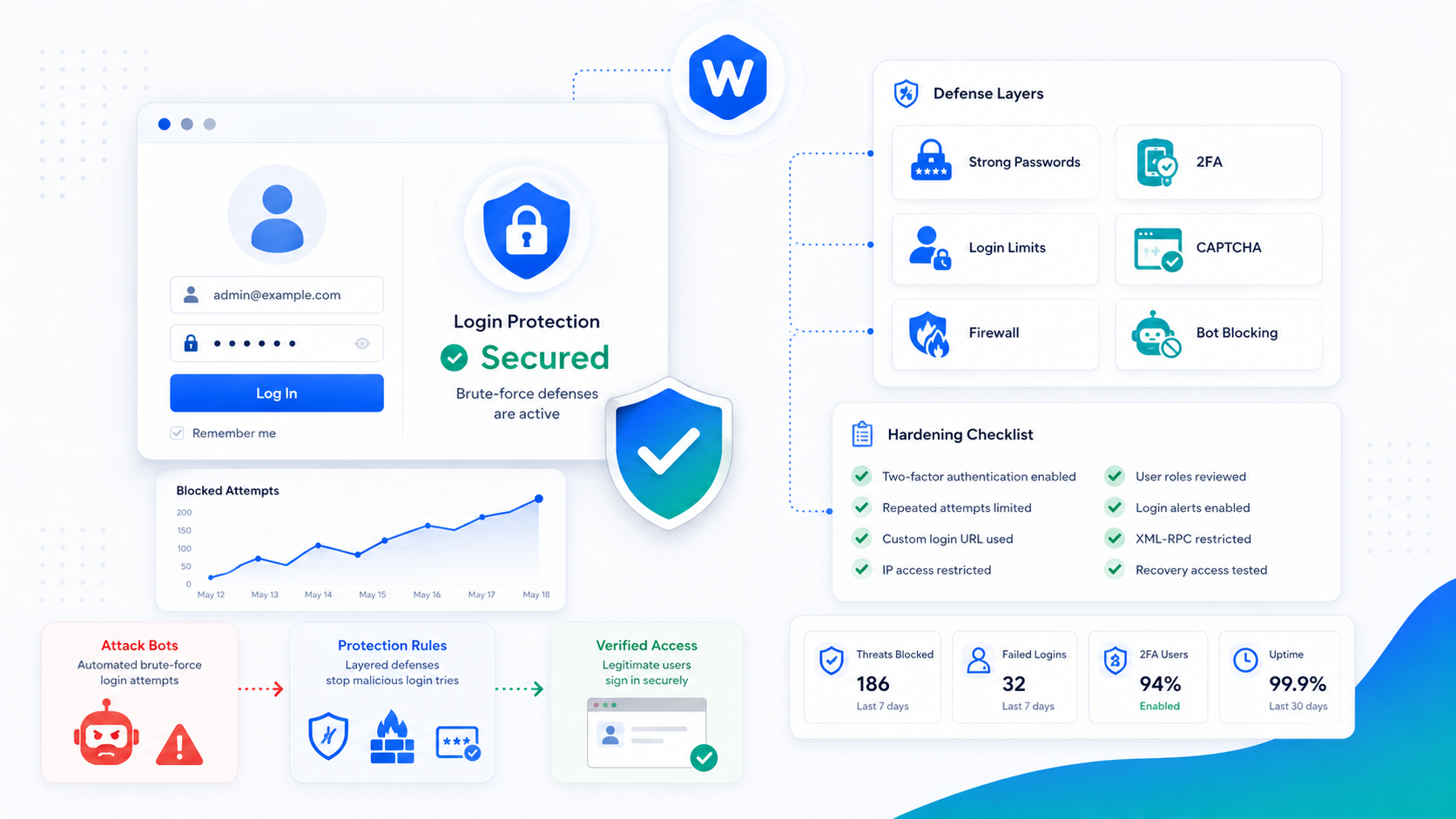
WordPress’s login page — wp-login.php — is one of the most attacked endpoints on the web. Because the URL is the same on every WordPress installation, attackers can aim automated tools at any WordPress site without knowing anything about it first. If the attack hits a valid username and a weak password, they’re in.
This guide covers the practical steps that actually reduce login attack risk, in order of impact.
How brute-force attacks actually work
A brute-force attack tries username and password combinations repeatedly until one works. Modern attacks are rarely someone sitting at a keyboard — they’re automated tools running across botnets of thousands of compromised machines, each submitting hundreds of login attempts per minute.
Credential stuffing is a related and often more effective variant: instead of random password guesses, attackers use real username/password pairs leaked from other breached services. If a user reused a password from a breached service on your WordPress site, credential stuffing will find it faster than pure brute-force.
WordPress, by default, imposes no limit on login attempts. An attacker can make unlimited requests to wp-login.php without triggering any built-in defense. That’s the fundamental problem this guide addresses.
1. Enforce strong passwords and change the admin username
Before adding any technical controls, the basics matter more than they’re often given credit for:
Change the admin username. “Admin,” “administrator,” and the site owner’s first name are the first usernames any automated attack tries. If your primary admin account uses one of these, create a new administrator account with a non-obvious username, then delete or demote the old one. There’s no patch for a predictable username.
Require strong, unique passwords. WordPress’s built-in password strength meter is visible but not enforced. Use a plugin or code snippet to enforce a minimum password strength for all users, not just administrators. Every account on the site — editors, authors, contributors — can be the entry point if the password is weak enough.
Use a password manager. This sounds obvious but remains the most effective single measure. A random 20-character password from a password manager is functionally unguessable. The barrier is getting every admin and editor to actually use one.
2. Add rate limiting and login lockouts
Rate limiting restricts how many login attempts can come from a single IP address in a given time window. A lockout temporarily blocks an IP after a threshold of failed attempts. Together, these make brute-force attacks impractical — a tool limited to 5 attempts per hour before getting blocked will take years to cycle through even a modest password list.
Server-level rate limiting (recommended): Implement rate limiting at the web server or CDN before PHP executes. An Nginx rate limit on requests to /wp-login.php uses minimal server resources and blocks attacks before they reach WordPress. Cloudflare’s WAF can similarly rate-limit login requests without server configuration.
Nginx example:
limit_req_zone $binary_remote_addr zone=login:10m rate=5r/m;

location = /wp-login.php {
    limit_req zone=login burst=3 nodelay;
    fastcgi_pass php-fpm;
}
Plugin-level lockouts: Plugins like Wordimatic Login Shield implement login attempt limits within WordPress. Plugin-level protection is easier to configure than server-level but less efficient — PHP still starts up for every blocked request, which means a high-volume attack still consumes server resources even if attackers don’t get in. For most shared hosting environments where server config isn’t available, a plugin is the practical option.
Set your lockout threshold conservatively — 5 failed attempts before a 30-minute lockout is a reasonable starting point. Real users who forget their password use the password reset flow; they don’t need unlimited retry attempts.
3. Enable two-factor authentication
Two-factor authentication (2FA) requires a second proof of identity beyond the password — typically a time-based one-time code (TOTP) from an authenticator app. Even if an attacker obtains a valid username and password, they can’t log in without the TOTP code that rotates every 30 seconds.
For admin and editor accounts, 2FA essentially eliminates credential-based attacks as a viable entry point. The attacker needs the password and physical access to the authenticator device simultaneously.
Popular TOTP apps include Google Authenticator, Authy, and 1Password’s built-in authenticator. Any app that supports TOTP (RFC 6238) will work. Set up backup codes when you configure 2FA and store them securely — losing access to your authenticator device without backup codes means a complex account recovery process.
Enforce 2FA for administrator-level accounts at minimum. Requiring it for all roles with backend access is better. A plugin or code-level implementation can make 2FA mandatory rather than optional.
4. Restrict access to wp-login.php by IP
If your site is managed by a small team whose IP addresses are known and relatively stable, you can restrict wp-login.php to allowlisted IPs at the server level. This means the login page returns a 403 (or simply doesn’t respond) for everyone except your team, regardless of credentials.
Nginx configuration:
location = /wp-login.php {
    allow 203.0.113.10;  # Your office IP
    allow 198.51.100.20; # Your home IP
    deny all;
    fastcgi_pass php-fpm;
}
This approach is highly effective — no login attempt from an unlisted IP can succeed, full stop. The limitation is that it’s impractical if your team frequently works from varying locations or if the site has multiple admins in different locations.
A middle ground is HTTP Basic Auth on the wp-login.php endpoint: a username/password prompt at the server level before WordPress’s own login form is served. This adds a second credential layer without requiring IP management.
5. Limit or relocate the login URL
Some plugins suggest moving the login URL from /wp-login.php to a custom path. This reduces the volume of automated attacks hitting the endpoint because most scanners target the default URL.
Understand what this does and doesn’t accomplish. Relocating the login URL is security through obscurity — it reduces noise from automated tools, but a determined attacker who identifies your site as WordPress can find or enumerate the real login URL. It’s a useful secondary measure, not a substitute for rate limiting, strong passwords, and 2FA.
If you implement a custom login URL, make sure your team knows it and that there’s a recovery path if it’s forgotten.
6. Monitor and alert on failed-login spikes
Active monitoring surfaces attacks in progress, even when they aren’t succeeding. A sudden spike in failed login attempts from a new IP range is an early warning — you can block the IP range preemptively, confirm your lockout thresholds are working, and investigate whether any accounts were successfully accessed.
Log failed login events including timestamp, username attempted, and IP address. Set an alert for thresholds that indicate an active attack — for example, more than 50 failed attempts per hour. Review the logs periodically even when no alerts fire; patterns in what usernames are being tried can indicate reconnaissance.
Wordimatic’s security monitoring service tracks failed login attempts across managed sites and flags attack patterns automatically.
What not to bother with
A few common login security measures that are more theater than substance:
CAPTCHA alone. CAPTCHA deters human attackers and basic bots. Sophisticated credential-stuffing tools use CAPTCHA-solving services or bypass visual CAPTCHAs entirely. CAPTCHA is not a substitute for rate limiting or 2FA.
Hiding the login URL alone. As noted above, obscurity reduces automated scanning but doesn’t stop targeted attacks. Don’t rely on it as your primary defense.
“Security questions” — additional challenge questions on login — are largely obsolete. Social engineering and public social media profiles make many security question answers trivially guessable.
The measures that actually work are the ones that make credential attacks computationally impractical (rate limiting), cryptographically difficult (2FA), or structurally blocked (IP allowlisting). Focus there.