
How to Tell If a WordPress Plugin Is Safe to Install
Not every WordPress plugin is safe. Use this checklist to vet a plugin's security, maintenance, and quality before you install it on a live site.
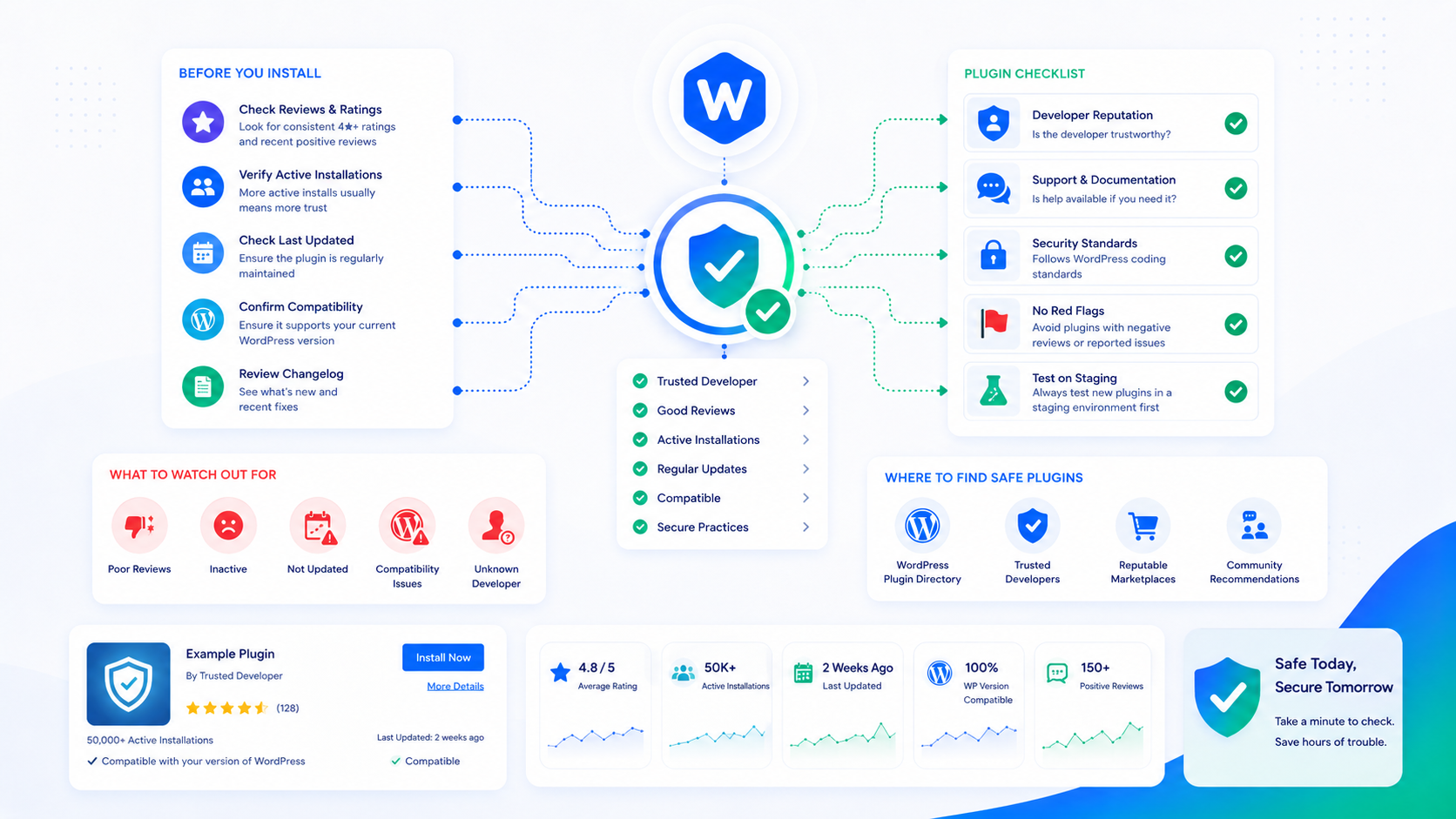
Plugin vulnerabilities are the leading cause of WordPress compromises by a wide margin. According to WPScan’s vulnerability data, over 90% of known WordPress vulnerabilities are in plugins and themes rather than in WordPress core. The attack surface is large and growing: the official repository hosts over 60,000 plugins, ranging from actively maintained, well-audited code to abandoned projects that haven’t received a security update in years.
Most site owners install plugins based on star ratings, install counts, and feature lists. Those signals are useful but incomplete. This checklist covers what to look at before installing any plugin on a live site.
Why plugins are the top attack vector
The attack mechanics are straightforward: a security researcher or malicious actor discovers a vulnerability in a plugin (SQL injection, cross-site scripting, broken access control). The vulnerability gets published to a database like WPScan or the National Vulnerability Database. Automated scanners begin probing sites for the vulnerable version. Sites that haven’t updated are exploited.
The time between a vulnerability being published and active exploitation is often measured in hours, not days. Sites running outdated plugin versions are continuously scanned and probed — not by humans looking for specific targets, but by automated tools that run against every WordPress site on the internet simultaneously.
The implication is that plugin selection and patch discipline matter more than almost any other security measure. The WordPress security guide covers the broader hardening picture, but plugin hygiene is where most real breaches originate.
Check 1: Active maintenance and update cadence
The most important signal is whether the plugin is actively maintained. An unmaintained plugin accumulates vulnerabilities with no patches forthcoming.
On the plugin’s WordPress.org page, check:
Last updated date. A plugin that hasn’t been updated in two or more years is a risk, regardless of how many installs it has or how good its rating is. Security vulnerabilities in dependencies (PHP libraries the plugin uses) and WordPress itself can make old plugin code exploitable even without a direct flaw in the plugin’s own logic.
WordPress version compatibility. Plugins that haven’t been tested against current WordPress versions are likely not receiving active maintenance. The “Tested up to” version on the repository page reflects what the author has actually verified.
Changelog quality. Read the changelog for recent versions. A changelog that mentions security fixes indicates the author is actively auditing and patching. A changelog with only feature additions over several versions, or a plugin with no changelog at all, gives you less confidence in the security attention the code receives.
One or two stale months is not concerning — open source maintainers take breaks. A year or more of inactivity on a plugin that handles authentication, file uploads, or database access is a red flag.
Check 2: Active install count, ratings, and support responsiveness
Active installs are a signal, but not a guarantee. A plugin with 1 million active installs has been vetted implicitly by a large user base, which tends to surface major issues quickly. A plugin with 500 installs may be excellent or may be abandoned.
High install counts can also be misleading: some very popular plugins have had serious vulnerabilities precisely because the install base made them high-value targets.
Rating distribution matters more than the average. A plugin with a 4.2 average rating from 800 reviews tells you less than looking at the breakdown: a bimodal distribution with lots of 5-star and lots of 1-star reviews often indicates the plugin works well in simple cases and breaks badly in others. Read the 1-star and 2-star reviews for patterns — recurring complaints about support responsiveness, broken updates, or data loss are meaningful signals.
Support thread responsiveness. On the plugin’s WordPress.org “Support” tab, look at how recently the developer has responded to open support threads. An author who hasn’t responded to any thread in months is likely not monitoring the plugin. If a security issue were reported, would anyone be watching to receive it?
Check 3: Known vulnerabilities
Before installing any plugin — especially one with significant functionality — check whether it has a known vulnerability history.
WPScan Vulnerability Database (wpscan.com) is the definitive source for WordPress plugin vulnerabilities. Search the plugin name and review its CVE history. Look for:
- How many vulnerabilities have been discovered
- How quickly they were patched after discovery
- Whether any active exploits exist for currently disclosed vulnerabilities
A plugin with a long vulnerability history that was consistently patched quickly is arguably better than a plugin with zero disclosed vulnerabilities — the former indicates active security attention, while the latter might simply mean no one has looked closely.
What “patched in version X” means for your install. If a vulnerability was patched in version 3.2.1 and you’re running 3.1.9, you’re exposed. The patch is available; you just haven’t applied it. This is the scenario driving the majority of WordPress compromises — the fix exists, but the site hasn’t updated.
Check 4: What the plugin can access
Not all plugins require the same level of trust. A plugin that adds a widget to your sidebar operates in a fundamentally different trust context than a plugin that manages user authentication, processes payment data, or provides file upload functionality.
Before installing, consider:
Database access. Does the plugin create its own tables? Does it have access to the entire WordPress database? A plugin that writes to wp_users or reads from wp_posts has significant access to your data.
File system access. Plugins that allow file uploads, manage themes or plugins, or provide file management capabilities can write to the server filesystem. A vulnerability in such a plugin can allow an attacker to write a PHP shell — a file that gives them command execution on your server.
External HTTP requests. Plugins that make outbound requests to third-party APIs on the frontend can introduce latency. More importantly, if the external endpoint is compromised or the plugin’s request handling is flawed, it can be used as a vector for server-side request forgery attacks.
Admin-level functionality. A plugin that registers high-privilege AJAX handlers without proper authentication checks — a common vulnerability class — can allow unauthenticated users to perform admin actions. This isn’t something you can verify without reading the code, but high-privilege plugins warrant more scrutiny.
Check 5: Code quality signals (for the technically inclined)
If you have PHP development experience, a quick review of the plugin code can surface obvious issues. Plugins on WordPress.org have public SVN repositories; many are also on GitHub.
Indicators of code quality:
- Use of WordPress’s sanitization and escaping functions (
sanitize_text_field(),esc_html(),$wpdb->prepare()) — their absence is a red flag for injection vulnerabilities - Nonce verification on form submissions and AJAX handlers — absence creates CSRF exposure
- Capability checks before performing privileged operations (
current_user_can()) - Composer-managed dependencies with a lock file, indicating controlled dependency versioning
You don’t need to audit every line. Scanning the most sensitive areas — AJAX handlers, form processing, file upload handling — often surfaces the most significant issues quickly.
Nulled plugins: don’t
Nulled plugins are premium plugins distributed for free from unofficial sources with the license check removed. The free premium plugin looks too good to pass up. The reality is that nulled plugins are one of the most reliable delivery mechanisms for WordPress malware.
The mechanism is simple: someone downloads a premium plugin, injects malicious code (a backdoor, a spam script, a cryptominer, a redirect injection), and distributes it as a “nulled” version. People install it, get the plugin’s features, and also run whatever was injected. The malicious code is often obfuscated and may not activate immediately.
There is no legitimate reason to run a nulled plugin. If the cost of the license is a concern, there are open source alternatives for almost every premium plugin category. The alternatives may have fewer features, but they don’t put your site at risk.
After install: ongoing monitoring
Plugin vetting is a point-in-time decision. After install, the risk profile changes as new vulnerabilities are discovered, new updates are released, and your review of the plugin becomes stale.
Ongoing plugin hygiene:
- Update promptly when security-relevant releases appear — within 24–48 hours for critical vulnerabilities
- Subscribe to the WPScan vulnerability feed or use a plugin that monitors your installed plugins against known CVEs
- Audit your plugin list quarterly — remove anything you’re not actively using
- Review the plugin management guide for a full plugin audit process
The Wordimatic Security Hardener monitors installed plugins against WPScan’s vulnerability database and flags issues before they become incidents.