
The robots.txt Mistakes That Hurt WordPress SEO
A misconfigured robots.txt can quietly deindex your WordPress site. Here are the most common robots.txt mistakes and how to get yours right.
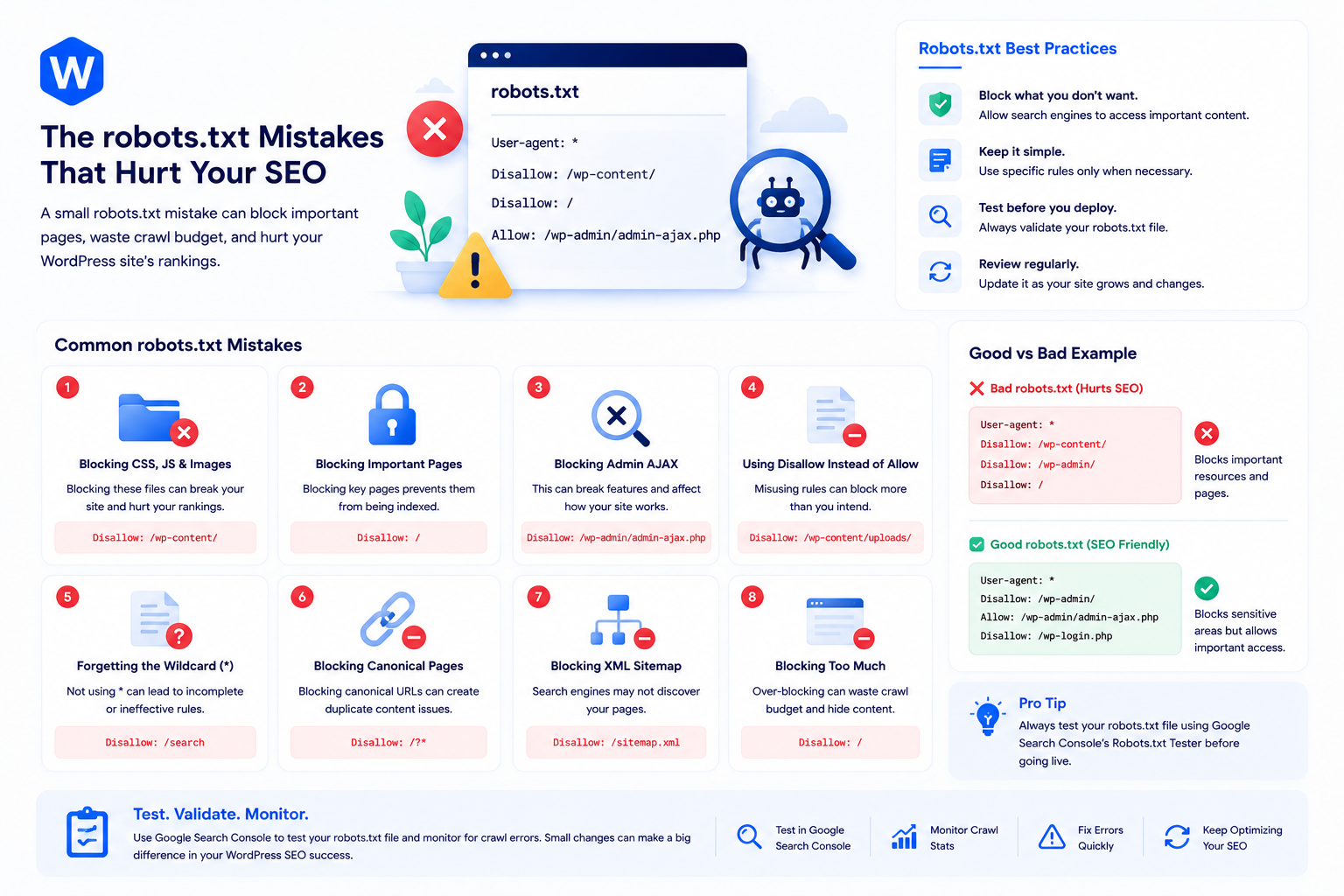
robots.txt is a small text file at the root of your site — typically less than 20 lines — that tells search engine crawlers which parts of your site to access. It’s one of the most powerful technical SEO levers available, and one of the most misunderstood.
A single wrong line in robots.txt can block Google from crawling your entire site. A missing directive can waste crawl budget on admin pages Google will never index. And some common “protection” uses of robots.txt do nothing useful at all.
What robots.txt does (and doesn’t) control
robots.txt controls crawling, not indexing. This distinction is critical and widely confused.
When you add Disallow: /example/ to robots.txt, you’re telling crawlers not to visit that URL. You are not telling Google to remove it from search results or to treat it as confidential. A page blocked by robots.txt can still appear in search results if other sites link to it — Google can index a URL it’s never crawled, based on the anchor text of inbound links.
To actually prevent a page from appearing in search results, you need a noindex meta tag or X-Robots-Tag HTTP header on that page. robots.txt alone does not accomplish deindexing.
robots.txt is also a suggestion, not a firewall. Compliant crawlers (Googlebot, Bingbot) respect it. Malicious bots and scrapers often don’t. Don’t use robots.txt as a security mechanism — it provides no actual access control.
Mistake 1: Blocking CSS and JavaScript files
Google renders pages to understand their content, much like a browser does. To render correctly, it needs to access your CSS and JavaScript files. Blocking these with robots.txt breaks Google’s ability to see your page as your users see it — which can cause ranking problems and generate “page cannot be rendered” warnings in Google Search Console.
A common older pattern was to block /wp-content/ or specific asset directories to reduce crawl load. This is counterproductive. WordPress’s default robots.txt does not block any asset directories, and you shouldn’t either.
If you see Googlebot blocked from CSS or JS files in Search Console’s URL Inspection tool, check your robots.txt for Disallow rules covering /wp-content/, /wp-includes/, or asset file extensions.
Mistake 2: Disallow: / (blocking the whole site)
This one occasionally appears on live sites and is always accidental. The rule:
User-agent: *
Disallow: /
…blocks every crawler from every page. The entire site becomes uncrawlable. Google doesn’t immediately deindex everything — it retains cached versions temporarily — but over days to weeks, the site disappears from search results.
How does this happen? Usually, it starts as a legitimate Disallow: / in a development or staging environment (to prevent the staging site from being indexed) and then gets copied to the production robots.txt during a migration or launch. A developer adds it intentionally to staging and forgets it’s there when pushing to production.
Check your live site’s robots.txt now: yourdomain.com/robots.txt. If it contains Disallow: / under a user-agent that matches Googlebot, fix it immediately. Google Search Console will alert on this, but the damage happens before you see the alert.
Mistake 3: Using robots.txt to hide pages from search results
This follows from the crawling vs. indexing distinction: blocking a URL in robots.txt doesn’t prevent it from appearing in search results. Yet it’s common to see robots.txt rules added specifically to “hide” pages — thin content, admin tools, internal landing pages — with the expectation that they’ll be kept out of Google’s index.
The correct approach for pages you don’t want indexed is a noindex directive:
<meta name="robots" content="noindex">
Or via an HTTP header for non-HTML resources:
X-Robots-Tag: noindex
These can coexist with robots.txt directives. If you want to prevent crawling AND prevent indexing, allow crawling (so Google can see the noindex directive) and add the noindex meta tag. If you block crawling via robots.txt, Google can’t read the noindex, and the page may still appear in results based on external links.
Mistake 4: No Sitemap directive
A robots.txt file is one of the standard places where you can declare your sitemap URL. Including it makes it easy for crawlers to discover the sitemap regardless of whether they’ve received it through Search Console:
Sitemap: https://yourdomain.com/sitemap.xml
This is a single-line addition with meaningful upside: crawlers that process robots.txt automatically discover and queue the sitemap. Most WordPress SEO plugins add this directive automatically, but it’s worth verifying yours is present and points to the correct URL.
Mistake 5: Conflicting rules and poorly written wildcards
robots.txt pattern matching is less flexible than most people expect. The * wildcard matches any sequence of characters, but only within a single Disallow rule — the rules don’t combine across multiple directives the way CSS selectors do.
When you have both Allow and Disallow rules matching the same URL, the more specific rule wins. If two rules are equally specific, the Allow takes precedence (for Google). Many sites have conflicting rules from multiple edits over time, and the effective behavior isn’t what the author intended.
A common problematic pattern:
Disallow: /wp-admin/
Allow: /wp-admin/admin-ajax.php
This is actually correct — admin-ajax.php is needed by some frontend functionality and should be accessible. But it requires understanding that the Allow overrides the broader Disallow for that specific path. When rules pile up over years of edits, verifying that the effective behavior matches the intent requires testing against each URL class.
Use Google Search Console’s robots.txt tester to check specific URLs against your current file. It shows which rule applies to a given URL and whether the result is “Allowed” or “Blocked.”
A safe WordPress robots.txt starting point
WordPress generates a default robots.txt automatically (viewable at yourdomain.com/robots.txt) if you don’t have a physical robots.txt file. The default allows all crawlers and disallows only /wp-admin/ (with the admin-ajax.php exception).
For most WordPress sites, the default is reasonable. A sensible baseline for a typical site:
User-agent: *
Disallow: /wp-admin/
Allow: /wp-admin/admin-ajax.php

Sitemap: https://yourdomain.com/sitemap.xml
You might add additional Disallow rules for:
/wp-login.php— though blocking it in robots.txt provides no security benefit (bots ignore it)- Duplicate content generated by URL parameters (session IDs, sort orders) — use canonical tags alongside, not instead of
- Search results pages (
/?s=) — thin content that wastes crawl budget
What you should not add: rules blocking CSS or JS directories, rules based on a misunderstanding of what robots.txt does, or any rule copied from a template without understanding what it does on your specific site.
Use Wordimatic’s free robots.txt Generator to build a correct file for your setup, then validate it in Google Search Console before deploying.