
How to Speed Up WordPress: A 12-Point Checklist
A practical, prioritized checklist for speeding up any WordPress site — from caching and images to the database and hosting — with the highest-impact wins first.
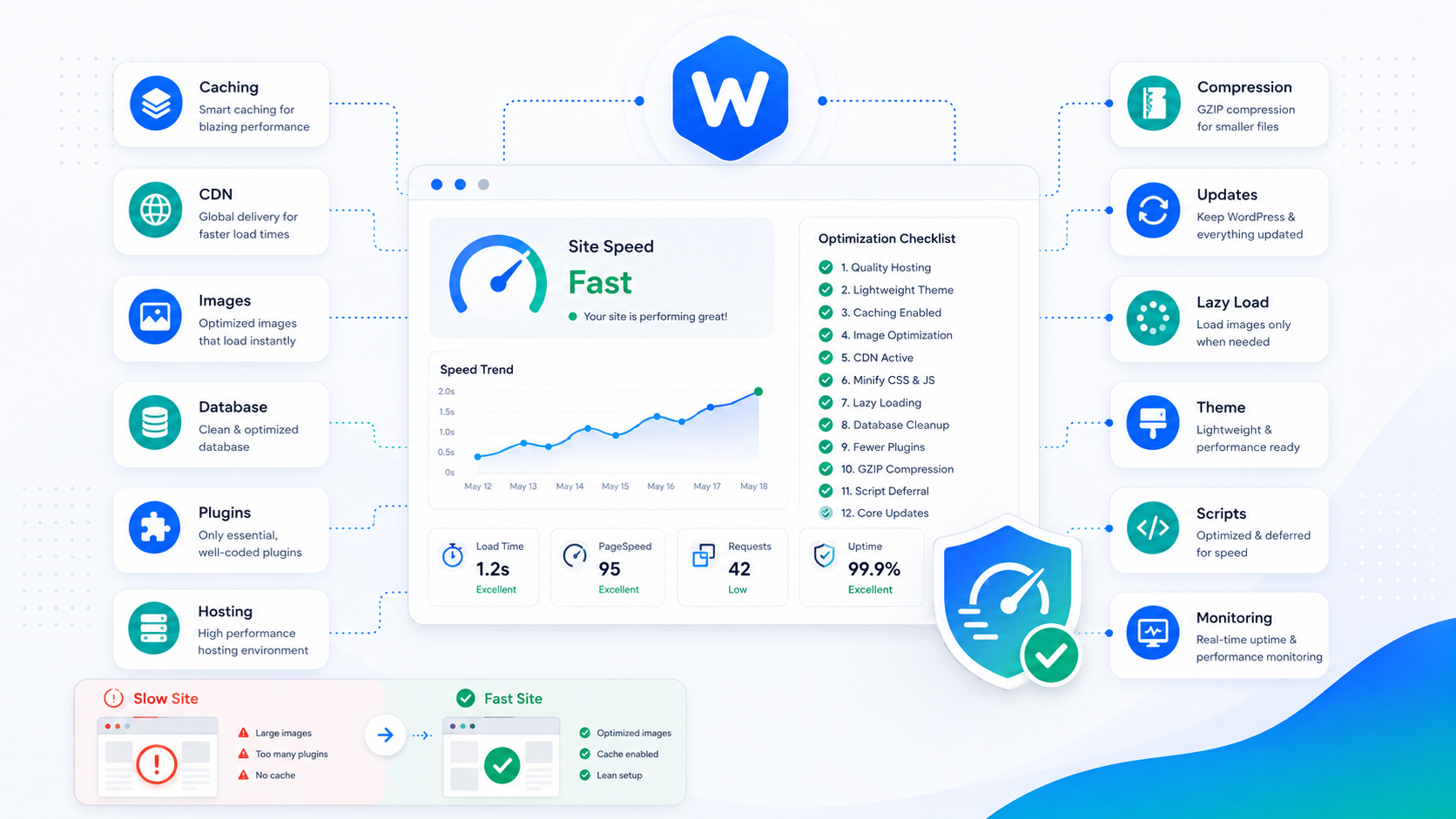
A one-second delay in page load time reduces conversions by roughly 7%, according to figures that have held up across industries for years. Google uses Core Web Vitals as a ranking signal. And visitors make a decision about whether to stay within a few seconds of landing. Speed isn’t a nice-to-have — it’s a direct business variable.
This checklist covers how to speed up WordPress, ordered by impact. Work through it sequentially: the items at the top address root causes, while the later ones are optimizations that only matter once the fundamentals are correct.
Start with a measurement baseline
Before changing anything, establish a baseline so you know what’s actually slow and can measure whether your changes made a difference.
Run your site through Google PageSpeed Insights to get both a lab score (Lighthouse) and field data (CrUX) drawn from real users. Then open Google Search Console and check the Core Web Vitals report — it shows LCP, CLS, and INP broken down by page group across your actual traffic. The full guide to Core Web Vitals explains what each metric measures and how to read the data.
Don’t optimize based on a single Lighthouse run. Lab scores are useful for identifying issues, but field data tells you what’s affecting real visitors.
1. Fix your hosting first
No amount of frontend optimization compensates for an underpowered server. If your server is slow, your TTFB (time to first byte) is slow, and TTFB is the upstream dependency for every other metric.
The minimum viable server stack for a WordPress site handling real traffic:
- PHP 8.1 or newer — PHP 8.x delivers meaningful throughput improvements over 7.4. If your host still defaults to 7.4, upgrade first.
- OPcache enabled — OPcache compiles PHP scripts to bytecode and stores them in memory, eliminating the parse-and-compile step on every request. It should be on by default; confirm it is.
- Sufficient RAM — WordPress with a mid-range plugin set needs room for PHP-FPM workers, MySQL, and any caching backend. A 512MB VPS running all of this will be constrained.
- SSD storage — Rotational disk is slow for database reads. If your host hasn’t moved to SSD, it’s time to move hosts.
Shared hosting that limits PHP worker processes creates a bottleneck at scale: requests queue behind each other even if each individual request is fast. If your hosting plan caps your concurrent PHP processes at a low number, you’ll hit a ceiling under moderate traffic.
2. Enable full-page caching
WordPress is dynamic: by default, every request triggers PHP, which queries the database and assembles the page from scratch. For pages whose content doesn’t change between visits — most pages on most sites — this is unnecessary work done on every request.
Full-page caching saves the assembled HTML and serves it directly on subsequent requests, bypassing PHP entirely for anonymous visitors. The performance impact is substantial: a cached page that takes 30ms to serve vs. an uncached page that takes 300–600ms.
Choose one caching plugin and configure it correctly:
- WP Rocket — the easiest to configure correctly out of the box, paid (~$59/year)
- LiteSpeed Cache — best performance if your server runs LiteSpeed, free
- W3 Total Cache — highly configurable, free, steeper learning curve
Enable the option to serve cached files without loading WordPress (static file serving). Confirm the cache is working by checking response headers for a cache-hit indicator or testing with an incognito browser window and a network throttle.
The complete WordPress caching guide covers page cache, object cache, and browser cache in detail.
3. Add object caching with Redis
WordPress’s default object cache is transient — it only persists within a single page request. A persistent object cache (backed by Redis or Memcached) stores database query results in memory across requests, so repeated lookups for the same data skip the database.
On sites with many plugins, high traffic, or complex database queries, adding Redis object caching can cut database load by 30–50% and reduce TTFB noticeably. Install the Redis Object Cache plugin, point it at a Redis instance on your server, and confirm it’s connected.
Not every hosting environment offers Redis. Managed WordPress environments typically include it; shared hosts often don’t. If your host doesn’t offer it, this item isn’t available to you without changing hosts.
4. Optimize images
Images are the largest contributors to page weight on most WordPress sites. A typical unoptimized WordPress page sends 1–3MB of images that could be 200–400KB with correct formatting and sizing.
The highest-leverage changes:
- Convert to WebP — WebP files are roughly 25–35% smaller than JPEG at equivalent visual quality. WordPress supports WebP natively since version 5.8, and most modern caching and image plugins will convert on upload.
- Serve at the correct size — Don’t upload a 3000×2000 image and display it at 800×533. WordPress’s srcset system can handle this if your theme registers the right image sizes, but many themes don’t.
- Lazy-load below-the-fold images — WordPress adds
loading="lazy"automatically since version 5.5. Make sure your theme isn’t overriding this. - Do not lazy-load the LCP image — Your hero image or above-the-fold featured image is likely the LCP element. Lazy-loading it delays the most important render. Set
loading="eager"andfetchpriority="high"on that image specifically.
The image optimization guide covers WebP conversion, srcset, and lazy loading in detail.
5. Eliminate render-blocking resources
The browser can’t start rendering until it has finished parsing all synchronous CSS and JavaScript in the <head>. Resources that delay this process are render-blocking, and they directly push out your LCP.
Common render-blocking culprits on WordPress sites:
- Google Fonts loaded synchronously — Replace the standard
<link rel="stylesheet">with a preconnect hint and load fonts withfont-display: swap. Better still, self-host your fonts and eliminate the third-party DNS lookup entirely. - Plugin scripts without defer or async — Many plugins load JavaScript synchronously even when it doesn’t need to execute before the page renders. Your caching plugin’s minification settings can add
deferto non-critical scripts, or you can do it with a code snippet. - Unused CSS from a page builder — A page builder generating 400KB of CSS for a page that uses 15KB of it is a real problem. Critical CSS tools extract what’s needed for the above-the-fold view and defer the rest.
6. Use a CDN
A content delivery network delivers static assets (images, CSS, JavaScript) from edge nodes close to your visitors rather than from your origin server. The performance gain from reduced geographic latency is real and consistent: a visitor in Sydney loading assets from a US server waits 150–200ms just for the round trip.
Cloudflare’s free tier covers most use cases and is the easiest starting point. It proxies traffic through its network, provides DDoS protection, and adds browser caching headers with minimal configuration. Paid CDNs like BunnyCDN offer better asset offloading and more control over cache behavior.
Enable CDN integration in your caching plugin so that cache invalidation is coordinated when you update content.
7. Clean up the database
WordPress accumulates cruft over time: post revisions, deleted spam comments, expired transients, and autoloaded options that grow with each plugin you install and uninstall. A bloated database increases query times and autoload overhead.
Key cleanup tasks:
- Post revisions — WordPress stores every saved draft as a revision. Limit revisions to 3–5 per post with
define('WP_POST_REVISIONS', 5)in wp-config.php and delete the backlog. - Expired transients — Transients are temporary cached values stored in the database. Expired ones accumulate; delete them with a SQL query or a plugin.
- Autoloaded options — Every row in wp_options with
autoload = yesgets loaded on every page request. Check for large autoloaded entries from uninstalled plugins.
Run database cleanup on a schedule — monthly for most sites, weekly for high-traffic sites with active publishing.
8. Audit and remove heavy plugins
Each active plugin adds PHP execution time, database queries, and often frontend assets (CSS and JavaScript) to every page load. A plugin audit is one of the highest-leverage maintenance tasks you can run.
Identify slow plugins with Query Monitor (a free plugin that shows per-plugin query counts and load times) or a profiling tool like XDebug. Look for plugins loading assets on pages where they’re not used, plugins making external HTTP requests on the frontend, and plugins with high query counts per page load.
Deactivate and delete any plugin you’re not actively using. An inactive plugin still exists on the filesystem and is a security surface area, but an active plugin that does nothing useful is also adding overhead. See the WordPress plugin management guide for a full plugin audit approach.
9. Minify and combine CSS and JavaScript
Minification removes whitespace, comments, and redundant code from CSS and JavaScript files. Concatenation combines multiple files into one, reducing the number of HTTP requests (though HTTP/2 reduces how much this matters compared to HTTP/1.1).
Most caching plugins include these features. Enable CSS and JS minification. Be more cautious with JS concatenation — combining scripts that depend on load order can break functionality. Test thoroughly after enabling, particularly for forms, sliders, and checkout flows.
If minification breaks something, disable JS concatenation first. It’s the most common conflict source.
10. Update PHP and WordPress core
PHP 8.1 is approximately 3× faster than PHP 7.2 on equivalent workloads. That’s not a marginal improvement — it’s a significant throughput gain from a configuration change. If you’re running PHP 7.4 or earlier, upgrading PHP is one of the fastest performance wins available.
WordPress core updates also include performance improvements alongside security patches. Staying current is both a security and performance practice. Test updates on a staging environment before applying to production.
11. Reduce third-party scripts
Google Analytics, Facebook Pixel, chat widgets, heat mapping tools, A/B testing scripts, and tag manager containers all add JavaScript that executes on page load and can delay interactivity (INP) or block rendering.
Audit your tag manager for tags that are no longer needed — it’s common for tags to accumulate over years without cleanup. For tags that are needed, load them asynchronously or defer them until after the page has rendered. For analytics specifically, consider a lightweight alternative (Plausible, Fathom) that adds a fraction of the overhead.
12. Monitor continuously after changes
Performance is not a one-time fix — it degrades as new plugins are installed, images are uploaded without optimization, and traffic patterns change. Set up ongoing monitoring so regressions are caught early.
Google Search Console’s Core Web Vitals report shows real-user data aggregated weekly. For proactive alerting, tools like SpeedCurve or Calibre monitor synthetic performance on a schedule and can alert on regressions before they accumulate in CrUX data.
Don’t rely solely on Lighthouse scores. A 90 Lighthouse score coexists with real-world performance problems if the lab environment doesn’t reflect your actual traffic patterns and device mix.