
WordPress Two-Factor Authentication: Setup Guide
Two-factor authentication stops credential attacks cold. Here's how to set up TOTP-based 2FA on WordPress, enforce it for admin accounts, and manage backup codes.
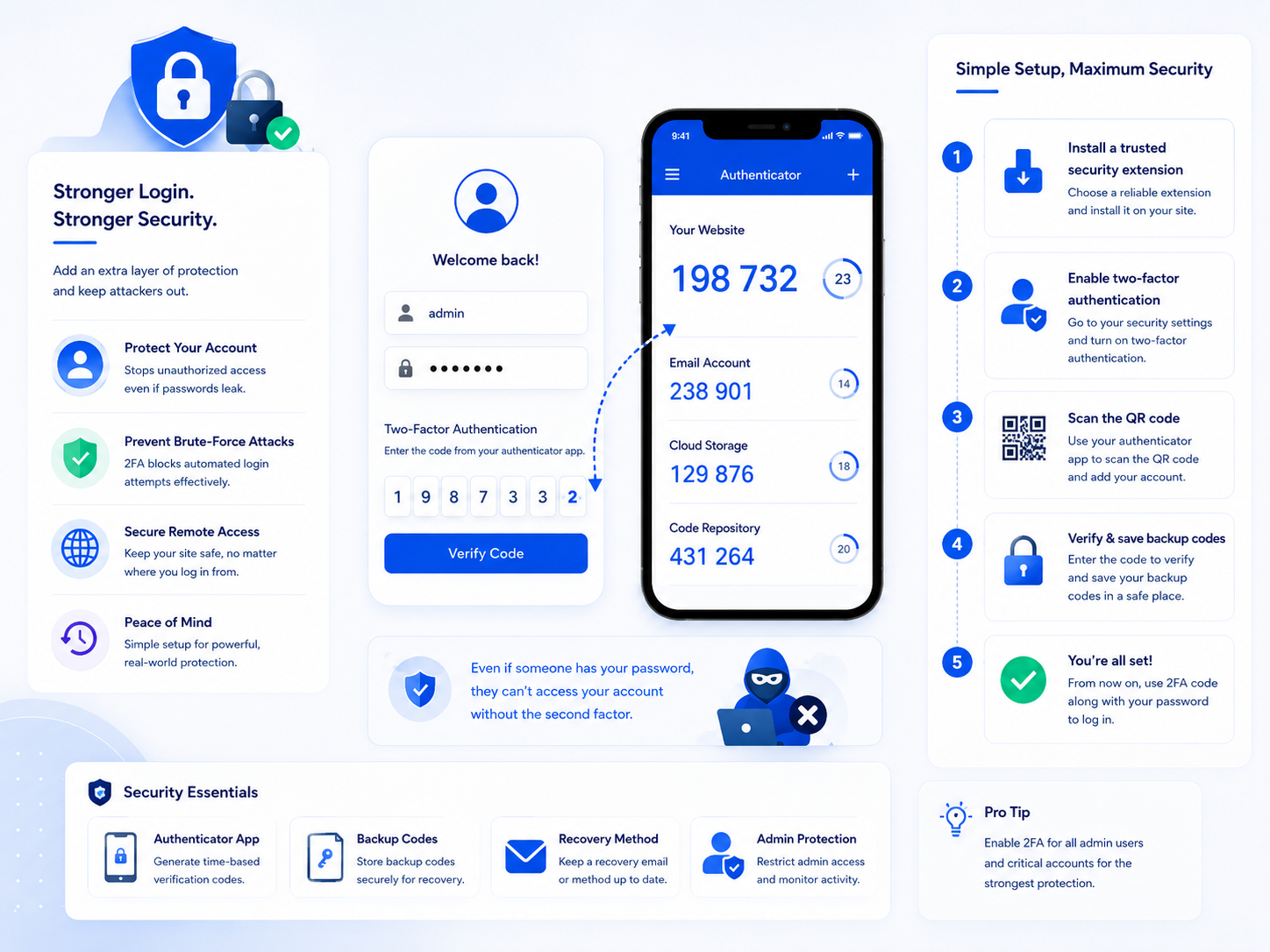
A strong, unique password is necessary but not sufficient for WordPress admin security. Passwords get phished, leaked in data breaches, or guessed through credential stuffing attacks. Two-factor authentication (2FA) adds a second requirement: something you physically have, not just something you know. Even with a valid password, an attacker who doesn’t have your authenticator device can’t log in.
For WordPress admin accounts — and arguably for any account with backend access — 2FA is the highest-impact single security measure available relative to the effort of setting it up.
How TOTP-based 2FA works
The most practical form of WordPress 2FA uses TOTP: Time-based One-Time Passwords. An authenticator app on your phone generates a 6-digit code that changes every 30 seconds, derived from a shared secret established during setup. When you log in, WordPress prompts for this code after your password.
The security guarantee: the code is only valid for 30 seconds and can only be derived from the physical device where the shared secret is stored. An attacker who obtains your password still needs your phone. Intercepted codes are useless after 30 seconds.
TOTP is standardized (RFC 6238), which means any compliant authenticator app works with any TOTP-compatible service. You’re not locked into a specific vendor’s app or ecosystem.
Choosing an authenticator app
Any TOTP-compatible authenticator app works. Common options:
Google Authenticator — simple, widely supported, stores codes locally on device. The downside: no built-in backup. If you lose the device, recovery depends on backup codes you saved during setup.
Authy — stores encrypted backups in the cloud, supports multi-device sync. Useful if you want 2FA access from multiple devices or want account recovery without solely relying on backup codes. The cloud backup is a slightly different security trade-off than purely local storage.
1Password — if your team uses 1Password as a password manager, it has a built-in TOTP authenticator. Convenient for managing both passwords and TOTP codes in one place.
Bitwarden — open source password manager with TOTP support in the premium tier.
For business-critical WordPress admin accounts, Authy or a password manager with TOTP support is preferable to Google Authenticator purely for the recovery options. Losing access to Google Authenticator without backup codes locked out of an admin account is a support call that’s unpleasant for everyone.
Setting up 2FA with a plugin
WordPress doesn’t include 2FA by default. You need a plugin or a custom implementation.
WP 2FA is a well-maintained free plugin that covers the core use case: TOTP setup for users, enforcement policies (make 2FA mandatory for selected roles), and backup codes. Setup:
- Install and activate WP 2FA
- Navigate to the plugin’s settings and configure your enforcement policy (administrators only, or all users with backend access)
- Set a grace period — how long users have to configure 2FA before they’re locked out
- Each user completes their own 2FA setup from their profile page
Two-Factor (WordPress.org) is maintained by WordPress core contributors and takes a more minimal approach. It supports TOTP, email-based OTP, and FIDO U2F hardware keys. Good choice if you want the lightest possible implementation.
For enterprise setups or sites with SSO requirements, plugins that integrate with existing identity providers (Okta, Google Workspace) are worth evaluating over standalone TOTP.
Walking through the user setup
When a user sets up TOTP, the plugin displays a QR code. The user opens their authenticator app, scans the QR code, and the app begins generating codes. The plugin asks the user to enter the current code to confirm the setup worked before enabling 2FA on the account.
The shared secret encoded in the QR code is stored in the WordPress database (encrypted, in a well-maintained plugin). The authenticator app stores the same secret locally. Both sides generate the same time-based codes.
After setup, the user’s login flow adds a second step: after entering the correct password, WordPress displays a 2FA prompt. The user opens their authenticator app, reads the current 6-digit code, and enters it. If correct, the login completes.
Backup codes: don’t skip this
During setup, generate backup codes and store them somewhere safe. Backup codes are single-use emergency codes that bypass TOTP when your authenticator device is unavailable — lost phone, new phone without the app configured, app accidentally removed.
Without backup codes, losing access to the authenticator device means locked out of the admin account. Recovery then requires either direct database access (to disable 2FA) or a support escalation to whoever manages the hosting environment.
Store backup codes in your password manager, not in a note on the same device as the authenticator app. The point of backup codes is to be accessible when the authenticator isn’t.
Enforcing 2FA for admin accounts
Setting up 2FA is optional by default. For meaningful security, it needs to be mandatory for accounts with administrator access — optional 2FA gets skipped by exactly the users who most need it.
Configure enforcement in your 2FA plugin’s settings:
- Enforce for specific roles: Administrators, editors — anyone with wp-admin access
- Set a grace period: 48–72 hours for existing users to complete setup before enforcement kicks in
- What enforcement looks like: Users who haven’t completed 2FA setup are redirected to the setup screen on login and can’t access wp-admin until setup is complete
Enforcing for all users is better than administrators-only, but if getting full enforcement creates friction that delays adoption, start with administrators. The highest-risk accounts first.
2FA for WooCommerce and customer accounts
For sites where customers have accounts — WooCommerce stores, membership sites, subscription platforms — 2FA for customer-facing login is a separate consideration from admin-side 2FA.
Customer account 2FA has different trade-offs: it adds friction to the checkout and account management flow, which affects conversion. The right answer depends on what data customer accounts contain and the security expectations of your user base. A WooCommerce store storing saved payment methods has a different calculus than a content site with free member accounts.
For sites where customer accounts hold sensitive data (payment information, personal health data, order history used for fraud), customer-side 2FA is worth the conversion trade-off.
2FA and password resets
One gap to be aware of: most WordPress 2FA implementations protect the login form but not the password reset flow. An attacker who can receive a password reset email can reset the password without encountering the 2FA prompt.
This means email account security is still important — if an attacker can access the email address tied to an admin account, they may be able to bypass 2FA via the password reset path. Admin accounts should use dedicated email addresses, not shared mailboxes, and those email accounts should themselves have 2FA enabled.
The login hardening guide covers the broader login security picture, including rate limiting and IP access controls that complement 2FA.