
WordPress Backup Strategy: 3-2-1 for Site Owners
A reliable WordPress backup strategy using the 3-2-1 rule — what to back up, how often, where to store it, and how to actually test your restores.
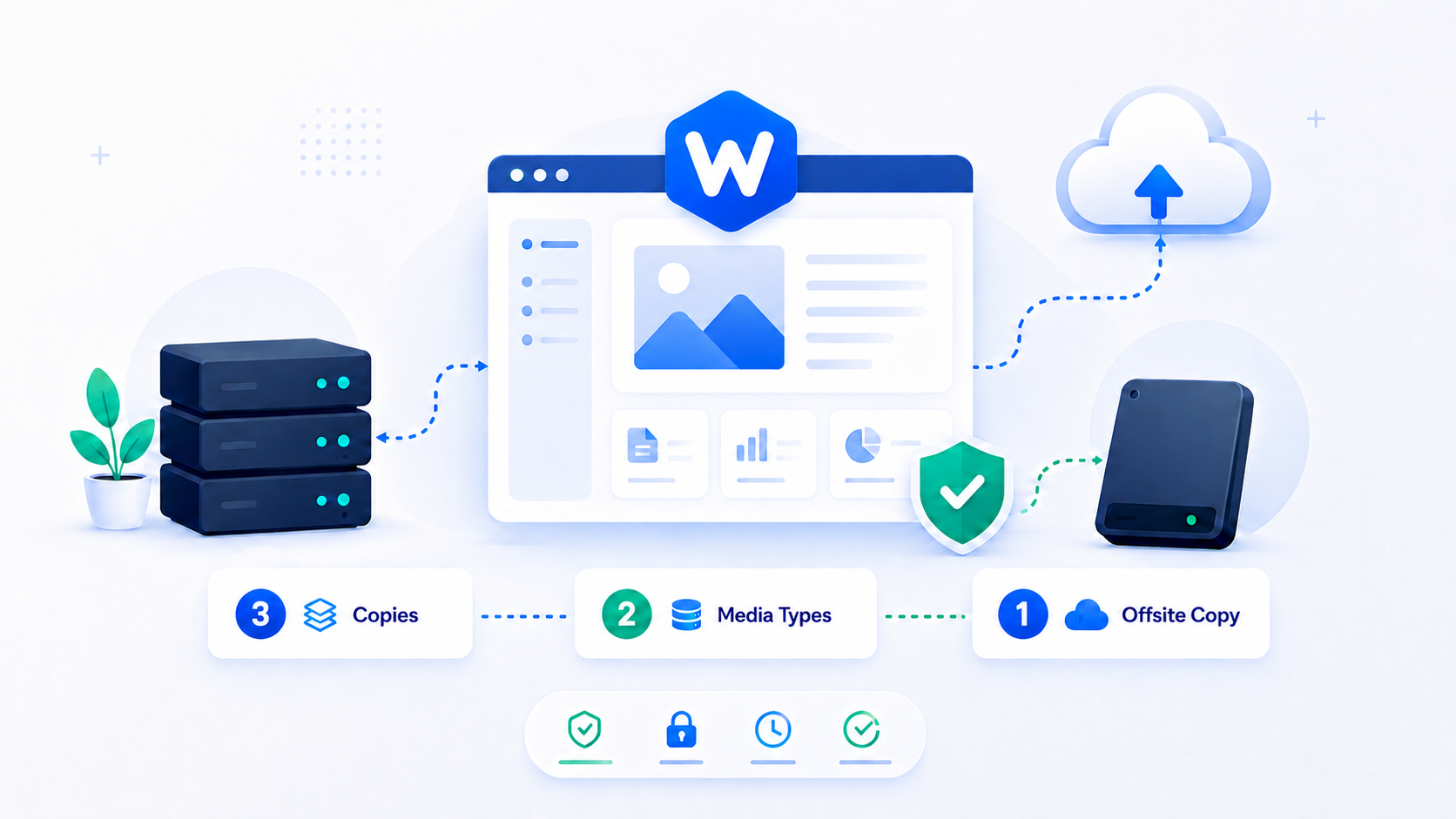
“We have backups” is one of the most falsely reassuring phrases in web hosting. It’s often true in the narrow sense — a backup process is running somewhere — and dangerously misleading in every other sense. Backups that haven’t been tested haven’t been confirmed to work. Backups stored only on the same server don’t survive hardware failures or account compromises. Backups from six months ago don’t help when you need yesterday’s data.
A real WordPress backup strategy answers four questions: what is being backed up, how often, where it’s stored, and whether a restore actually works when you need it.
The 3-2-1 rule applied to WordPress
The 3-2-1 rule is a data protection standard from enterprise backup strategy, and it applies directly to WordPress:
- 3 copies of your data (the live site plus two backups)
- 2 different storage media (for example, local server storage and cloud object storage)
- 1 offsite copy (stored in a different physical location than your server)
A backup stored only on the same server as your site fails condition 2 and 3. A hosting provider’s server-level snapshots stored on the same infrastructure fail condition 3. Many “backup” setups that feel robust don’t meet all three conditions.
The rule isn’t arbitrary — it’s designed so that no single failure mode (disk failure, data center fire, ransomware encryption, hosting account suspension) eliminates all your copies simultaneously. Each condition closes a specific failure class.
What actually needs backing up
A complete WordPress backup has four components:
The database. This is the most important piece. Your posts, pages, comments, user accounts, settings, and almost all plugin data live in the database. Losing the database means losing your content, regardless of what else you have. Database backups are typically small and fast — a site with 1,000 posts might have a 20MB database — and should be backed up more frequently than file backups.
wp-content/uploads. This directory contains your uploaded media — images, PDFs, documents, video files. It’s often the largest part of a WordPress backup and grows continuously with your site. Back it up regularly, but incremental backups (only new and changed files) are more efficient than full copies after the initial backup.
Theme and plugin files. Your active theme, any custom themes or child themes, and plugin files. These are technically recoverable — you can reinstall plugins from the repository and re-purchase premium plugins — but having a current backup saves hours during a recovery. If you have any custom or bespoke plugin code, treat it as critically important.
wp-config.php. Your database credentials, secret keys, and site configuration. Include it in backups; keep the backup itself secure.
What you don’t need to back up: WordPress core files (/wp-admin/, /wp-includes/, the root PHP files). These are identical to a fresh WordPress installation and can be replaced from wordpress.org in minutes. Backing them up wastes storage and time.
How often to back up
Backup frequency should match how much data you can afford to lose — the technical term is RPO, Recovery Point Objective.
E-commerce sites (WooCommerce): Daily database backups are the minimum. For active stores processing multiple orders per day, hourly or real-time transaction backups are appropriate. Losing an order means losing the customer’s data and potentially the sale itself — the financial and compliance implications of that loss are direct.
Content sites with regular publishing: Daily or weekly database backups, depending on publishing cadence. A site that publishes daily needs daily backups; losing a week of posts is meaningful work lost.
Low-activity sites (brochure, portfolio): Weekly backups are defensible if the content changes infrequently. Monthly is the minimum anyone should be comfortable with regardless of activity level.
Before any significant change: Always take a manual backup before major plugin updates, theme changes, or WordPress core upgrades. Automated backup schedules don’t protect against changes you make that break the site in the same backup window.
Where to store backups
Off-server storage is not optional — it’s the whole point of condition 3 in the 3-2-1 rule.
Cloud object storage is the standard option: Amazon S3, Backblaze B2, or Wasabi offer durable, inexpensive storage with programmatic access. Most WordPress backup plugins support direct upload to S3-compatible storage. Costs for a few gigabytes of backups are negligible — under $1/month for most sites.
Avoid storing backups only via your host’s backup feature. Many hosts offer daily snapshots as part of the plan. These are convenient and better than nothing, but they’re typically stored on the same infrastructure as your site. A billing dispute, account suspension, data center issue, or ransomware attack affecting your host can affect both your site and their backup copies simultaneously.
Ransomware-resilient storage: Standard object storage can be overwritten or deleted by a script with the right credentials. For protection against ransomware (which increasingly targets backup systems), use versioned or immutable storage — S3 Object Lock, Backblaze B2 Object Lock, or similar. These features prevent deletion or overwriting of backup files for a defined retention period, even by someone with your credentials.
The step everyone skips: testing restores
A backup exists to be restored. Until you’ve confirmed that a restore works, you don’t have a backup strategy — you have a hope.
Restore testing means: take a recent backup, and restore it to a staging environment. Confirm the site loads, that recent content is present, that user accounts work, and that the database is intact. Do this at minimum quarterly; monthly is better.
This is the step that catches:
- Backup files that were corrupted during transfer
- Database exports that omit certain tables
- Restoration procedures that don’t work with your current hosting environment
- Backup plugins that were silently failing for weeks
The WordPress maintenance checklist includes restore testing as a monthly task. It’s one of the highest-priority items on that list precisely because failure is discovered at the worst possible moment when the test is never run.
Backup retention and ransomware resilience
How long you keep backups matters as much as how often you take them. Ransomware is one reason: sophisticated ransomware often encrypts files silently for weeks before making itself known, waiting until recent backups are themselves encrypted. If you keep only 7 days of backups and the ransomware ran for 14 days before encrypting, all your recent backups are compromised.
Standard retention recommendations:
- Daily backups: retain for 30 days
- Weekly backups: retain for 3 months
- Monthly backups: retain for 1 year
Automated retention policies in your backup tool or storage provider can manage this without manual intervention.
Who owns backups on a managed site
On a well-run managed WordPress service, backup ownership is explicit. The provider maintains scheduled off-server backups, verifies them, and tests restores on a defined cadence. The client can typically request a restore or access backup archives directly.
What “managed hosting” includes varies significantly between providers. Some hosts call themselves managed but use the same server-only snapshots that shared hosts offer. Before relying on a provider’s backup claim, ask specifically: Where are backups stored? How do I access them? What does a restore actually look like, and who does it?
Wordimatic’s managed WordPress service includes off-server backups to redundant cloud storage, engineer-handled restores, and client-accessible archives for any backup on the retention schedule.