
WordPress Database Optimization: Cleaning Up for Speed
A bloated WordPress database slows down queries and inflates autoload overhead. Here's how to identify and clean up revisions, transients, and orphaned data safely.
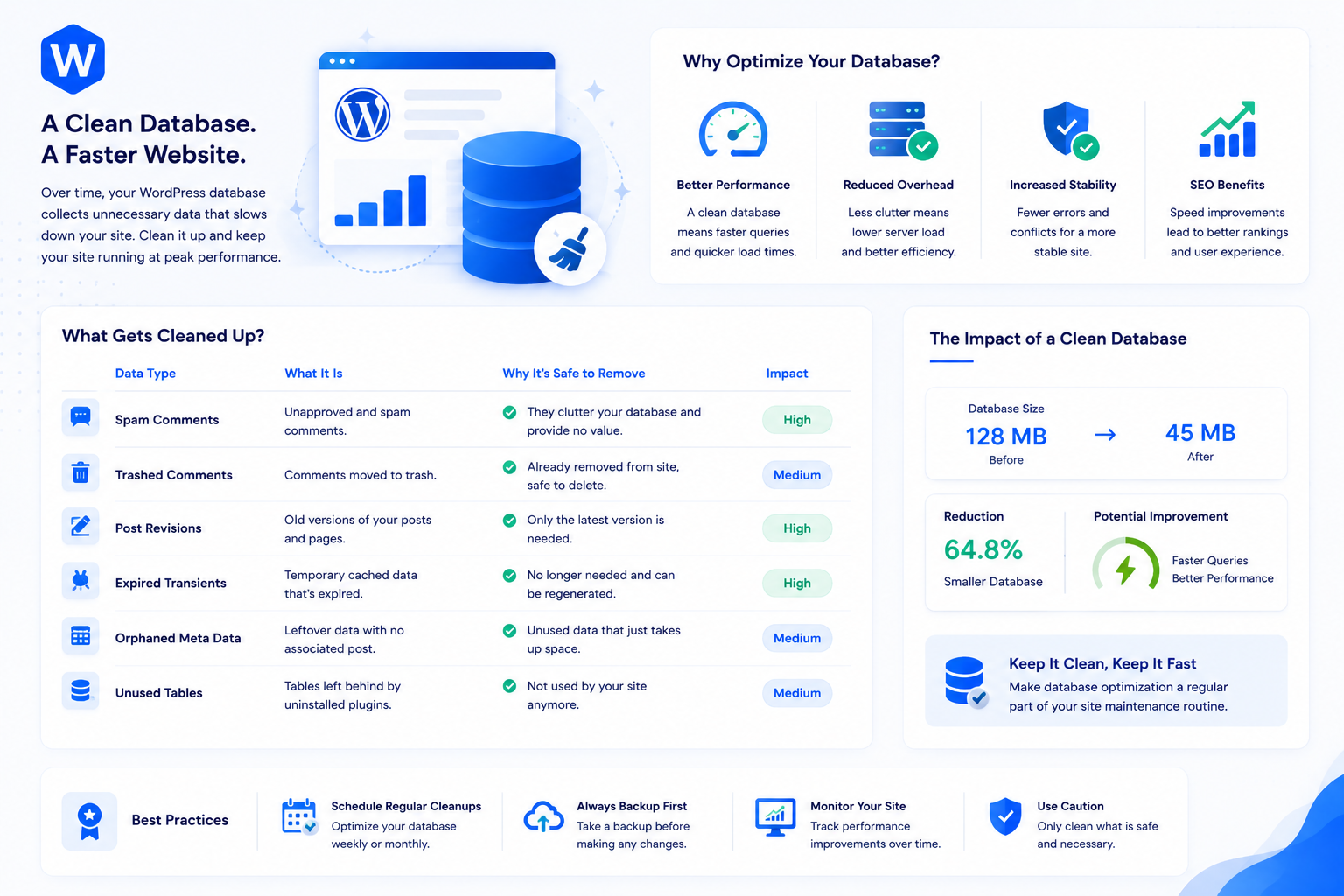
WordPress uses a MySQL database for nearly everything: your posts, pages, user accounts, plugin settings, site configuration, and cached data. Over time, this database accumulates entries that serve no ongoing purpose: old post revisions, expired transient caches, orphaned metadata from uninstalled plugins, and autoloaded option rows that grow with every plugin you’ve ever touched.
None of this crashes a site. But it does make the database larger, slow down queries, and bloat the data loaded on every single page request. Database optimization is maintenance work that pays performance dividends continuously after it’s done.
Why database bloat affects performance
Two specific mechanisms drive the performance impact:
Query time increases with table size. Larger tables take longer to scan when queries don’t use indexed columns efficiently. On a database that has accumulated years of revisions and expired transients, queries that touch wp_posts and wp_options take measurably longer than on a clean database.
Autoloaded data loads on every request. WordPress loads every row in wp_options where autoload = yes into memory at the start of every page request, regardless of whether the current page uses that data. Plugin after plugin adds autoloaded rows, and uninstalled plugins often leave them behind. A database with 10MB of autoloaded data adds 10MB of memory overhead to every single PHP process — before any page-specific work has started.
Post revisions
WordPress saves a new revision every time a post is updated. The default behavior has no limit — a post that’s been edited 50 times has 50 revisions stored in the database. For a site with active publishing, this accumulates quickly.
Limit future revisions in wp-config.php:
// Keep only the 5 most recent revisions per post
define('WP_POST_REVISIONS', 5);
Or disable revisions entirely if you don’t use them:
define('WP_POST_REVISIONS', false);
This setting applies to new revisions going forward. Existing revisions aren’t affected until cleaned up.
Clean up existing revisions with WP-CLI:
wp post delete $(wp post list --post_type='revision' --format=ids) --force
Or via SQL (take a backup first):
DELETE FROM wp_posts WHERE post_type = 'revision';
DELETE FROM wp_postmeta WHERE post_id NOT IN (SELECT ID FROM wp_posts);
The second query cleans up orphaned postmeta rows left behind after deleting the revisions.
Expired transients
Transients are temporary values stored in the database — WordPress’s built-in short-term caching system. Plugins use transients to store API responses, calculated values, and other data that should expire. The problem: WordPress only cleans up expired transients when something tries to read them. Transients that were written and never read again accumulate indefinitely.
View the current transient count:
SELECT COUNT(*) FROM wp_options WHERE option_name LIKE '_transient_%';
Delete all expired transients with WP-CLI:
wp transient delete --expired
Or delete all transients (safe if you use Redis or Memcached for object caching, since transients will be regenerated as needed):
wp transient delete --all
If you have Redis object caching enabled, transients are stored in Redis rather than the database, and this entire cleanup step is less relevant — expired keys evict automatically.
Autoloaded options bloat
The wp_options table is where WordPress stores site-wide settings, and every plugin that stores settings tends to add rows with autoload = yes. Check your current autoload footprint:
SELECT SUM(LENGTH(option_value)) AS autoload_size_bytes
FROM wp_options
WHERE autoload = 'yes';
If the result is over 1MB, autoloaded data is likely contributing to page generation overhead. Anything over 5MB is a problem worth investigating specifically.
Identify the largest autoloaded rows:
SELECT option_name, LENGTH(option_value) AS size_bytes, autoload
FROM wp_options
WHERE autoload = 'yes'
ORDER BY size_bytes DESC
LIMIT 20;
Large autoloaded entries often come from:
- Caching plugins that store their configuration in autoloaded options
- SEO plugins with large serialized settings arrays
- Abandoned plugins that left their data behind after uninstalling
For entries from active plugins you’re using: check if the plugin has an option to store its data non-autoloaded, or accept the overhead as the cost of the plugin.
For entries from uninstalled plugins: these are orphaned data and can be safely deleted after confirming which plugin they came from:
DELETE FROM wp_options WHERE option_name = 'abandoned_plugin_option_name';
Don’t mass-delete autoloaded rows without identifying them first. Some contain WordPress core configuration that would break the site if deleted.
Spam comments and trash
Comments in spam and trash status still occupy the database. Clear them:
wp comment delete $(wp comment list --status=spam --format=ids) --force
wp comment delete $(wp comment list --status=trash --format=ids) --force
Or set WordPress to auto-delete spam after a defined period: Settings → Discussion → “Delete spam comments after X days.”
Similarly, posts and pages in the Trash stay in the database until manually emptied. Empty the trash periodically or set an auto-empty schedule.
Orphaned postmeta and usermeta
When posts are deleted, their associated metadata in wp_postmeta should be cleaned up automatically. In practice, this doesn’t always happen — particularly with custom fields and plugin-specific metadata. Orphaned postmeta rows accumulate in wp_postmeta without a corresponding row in wp_posts.
Identify orphaned postmeta:
SELECT COUNT(*) FROM wp_postmeta
WHERE post_id NOT IN (SELECT ID FROM wp_posts);
Delete orphaned rows:
DELETE FROM wp_postmeta
WHERE post_id NOT IN (SELECT ID FROM wp_posts);
The same pattern applies to wp_usermeta for deleted users, wp_term_relationships for deleted posts, and other relational tables. Most cleanup plugins handle these automatically.
Using a plugin for cleanup
For sites where direct database access isn’t practical, plugins automate these cleanup tasks. WP-Optimize and Advanced Database Cleaner both handle revision deletion, transient cleanup, and orphaned data removal through a wp-admin interface.
If you use a cleanup plugin:
- Run cleanup on a staging environment first to confirm it behaves as expected
- Take a full backup before running cleanup on production
- Schedule automatic cleanup (monthly is appropriate for most sites) rather than doing it manually
Optimizing tables after cleanup
MySQL tables can develop fragmentation after large deletions — the space occupied by deleted rows isn’t automatically reclaimed until the table is optimized. Run table optimization after a major cleanup:
wp db optimize
Or via SQL:
OPTIMIZE TABLE wp_posts, wp_postmeta, wp_options, wp_commentmeta;
Table optimization briefly locks the table being optimized. Run it during a low-traffic window, and don’t run it on tables with active writes without understanding the locking implications for your setup.
Making database optimization part of the maintenance cadence
Database cleanup is a quarterly task for most sites — often covered in the WordPress maintenance checklist. For high-publishing sites or sites with WooCommerce generating order data, monthly cleanup is more appropriate.
The speed checklist covers database cleanup as one item in the broader performance picture. For sites running Redis object caching, the database query optimization impact is partially offset by cache hits, but the autoloaded data reduction is still worth doing.