
WordPress File Permissions: The Correct Setup Explained
Wrong file permissions are both a security vulnerability and a source of WordPress errors. Here's the correct chmod setup for files, directories, and wp-config.php.
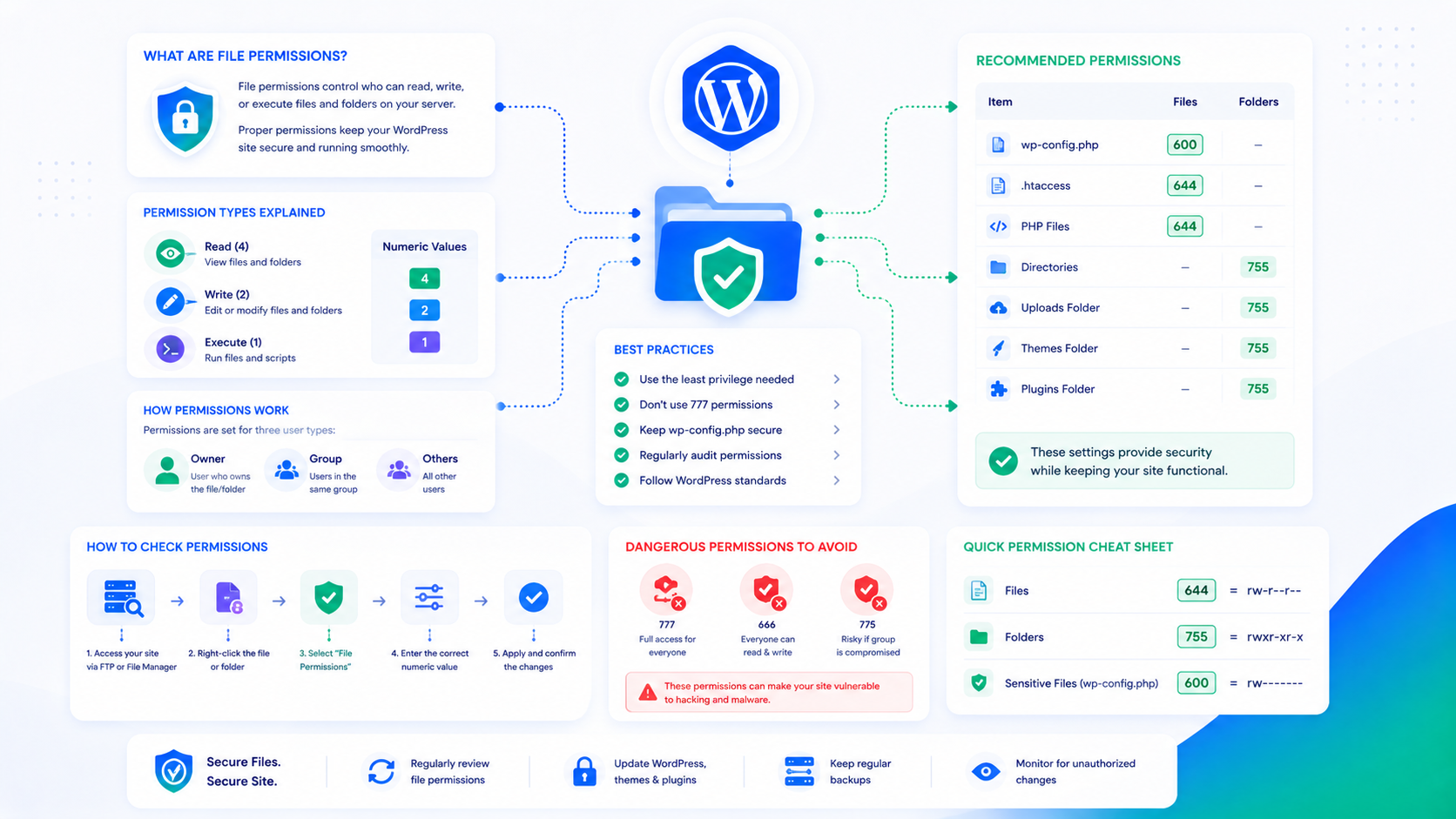
File permissions control who can read, write, and execute files on your server. Set them too permissively, and an attacker who compromises one part of your hosting environment can write malicious files anywhere. Set them too restrictively, and WordPress can’t update itself or write uploads.
Most WordPress permission problems fall into one of two categories: too permissive (a security risk) or too restrictive (a functionality error). The correct setup is neither — it’s the narrowest permissions that allow WordPress to function as it should.
How Unix permissions work
Unix file permissions use three sets of read/write/execute bits for three groups: the owner of the file, the group, and everyone else (world).
A permission like 755 means:
- Owner: read, write, execute (7 = 4+2+1)
- Group: read, execute (5 = 4+1)
- World: read, execute (5 = 4+1)
A permission like 644 means:
- Owner: read, write (6 = 4+2)
- Group: read (4)
- World: read (4)
For files, “execute” means the file can be run as a program. For directories, “execute” means the directory can be traversed (entered). Directories need execute permission for anyone who needs to navigate into them.
The “owner” in a WordPress context is typically the user account under which PHP runs — often the same as the web server user (www-data on Ubuntu/Debian, apache on CentOS/RHEL) or a dedicated per-site user in properly configured PHP-FPM setups.
The correct WordPress permission settings
Files: 644 Files should be readable by everyone but writable only by the owner. This allows the web server to serve files to visitors and allows WordPress (as the file owner) to update files. It prevents anyone else from modifying files.
Directories: 755 Directories need to be traversable by the web server (so it can serve files within them) and writable only by the owner. 755 gives the owner full control and everyone else read and execute only.
wp-config.php: 600 or 640 This file contains your database credentials and secret keys — the most sensitive file in your WordPress installation. Restrict it to owner-read/write only (600). If the web server runs as a different user than the file owner, use 640 (owner + group read) and ensure the group is set to the web server’s group.
wp-content/uploads/: 755 or 775 The uploads directory needs to be writable by the PHP process so WordPress can save uploaded files. If PHP runs as the same user as the file owner, 755 is sufficient. If PHP runs as a different user, you may need 775 (owner + group write) with the appropriate group assignment. Avoid 777 (world-writable) — it means any process on the server can write to your uploads directory.
Do not allow PHP file execution in the uploads directory. An .htaccess file in uploads that blocks PHP execution prevents uploaded malicious PHP files from being executed even if they exist:
<Files *.php>
deny from all
</Files>
On Nginx, add a location block to deny PHP in uploads:
location ~* /wp-content/uploads/.*\.php$ {
    deny all;
}
How permissions get set incorrectly
SFTP upload as root or incorrect user. When files are uploaded via FTP or SFTP as a different user than the PHP process, the ownership is wrong. PHP can’t write to files it doesn’t own, and attempts to set permissions to 777 to “fix” this create a security problem.
Installer or migration scripts. Migration plugins and automated installers sometimes set broad permissions during setup and don’t reset them afterward.
cPanel/Plesk defaults. Some hosting control panels default to 644/755 correctly, but others set directories to 777 or files to 666 during creation.
chmod -R 777 as a “fix.” The most common bad advice in WordPress hosting forums. chmod -R 777 /var/www/site sets everything world-writable, which solves the immediate error but creates a serious security vulnerability. Any process running on the server — or any script injected via another vulnerability — can now write files anywhere in your WordPress installation.
Auditing current permissions
Find files with incorrect permissions:
# Find world-writable files (should return nothing)
find /var/www/yoursite -type f -perm -002 -ls

# Find world-writable directories (should return nothing except possibly uploads)
find /var/www/yoursite -type d -perm -002 -ls

# Find files with execute permission (should be very few)
find /var/www/yoursite -type f -perm /111 -ls
Find PHP files in the uploads directory (should return nothing):
find /var/www/yoursite/wp-content/uploads -name "*.php" -type f
Any PHP files found in uploads are suspicious — either a misconfigured plugin or malicious files from a compromise.
Resetting permissions correctly
Reset all files and directories to correct permissions with two find commands:
# Set directories to 755
find /var/www/yoursite -type d -exec chmod 755 {} \;

# Set files to 644
find /var/www/yoursite -type f -exec chmod 644 {} \;
Then tighten wp-config.php specifically:
chmod 600 /var/www/yoursite/wp-config.php
These commands apply recursively to everything under your WordPress root. Run them when you suspect permissions have been changed, after a migration, or as part of post-compromise hardening.
File ownership vs. permissions
Permissions determine what actions are allowed. Ownership determines which user the permission applies to. Both must be correct.
WordPress files should be owned by the user running PHP. If your site runs PHP as www-data and the files are owned by root, PHP can only access them based on the “world” permission bits — which is typically read-only (644). WordPress can’t update itself or save uploads.
Correct ownership on a standard PHP-FPM setup:
chown -R www-data:www-data /var/www/yoursite
On cPanel servers, replace www-data with your cPanel username and the cPanel-assigned group.
The file permissions guidance in the WordPress security guide covers permissions as part of the broader security hardening baseline. The malware removal guide includes permissions resetting as a post-compromise step.