
WordPress Maintenance Checklist: What to Do Weekly, Monthly & Yearly
A complete WordPress maintenance checklist organized by cadence — the tasks to run weekly, monthly, and yearly to keep your site fast, secure, and reliable.
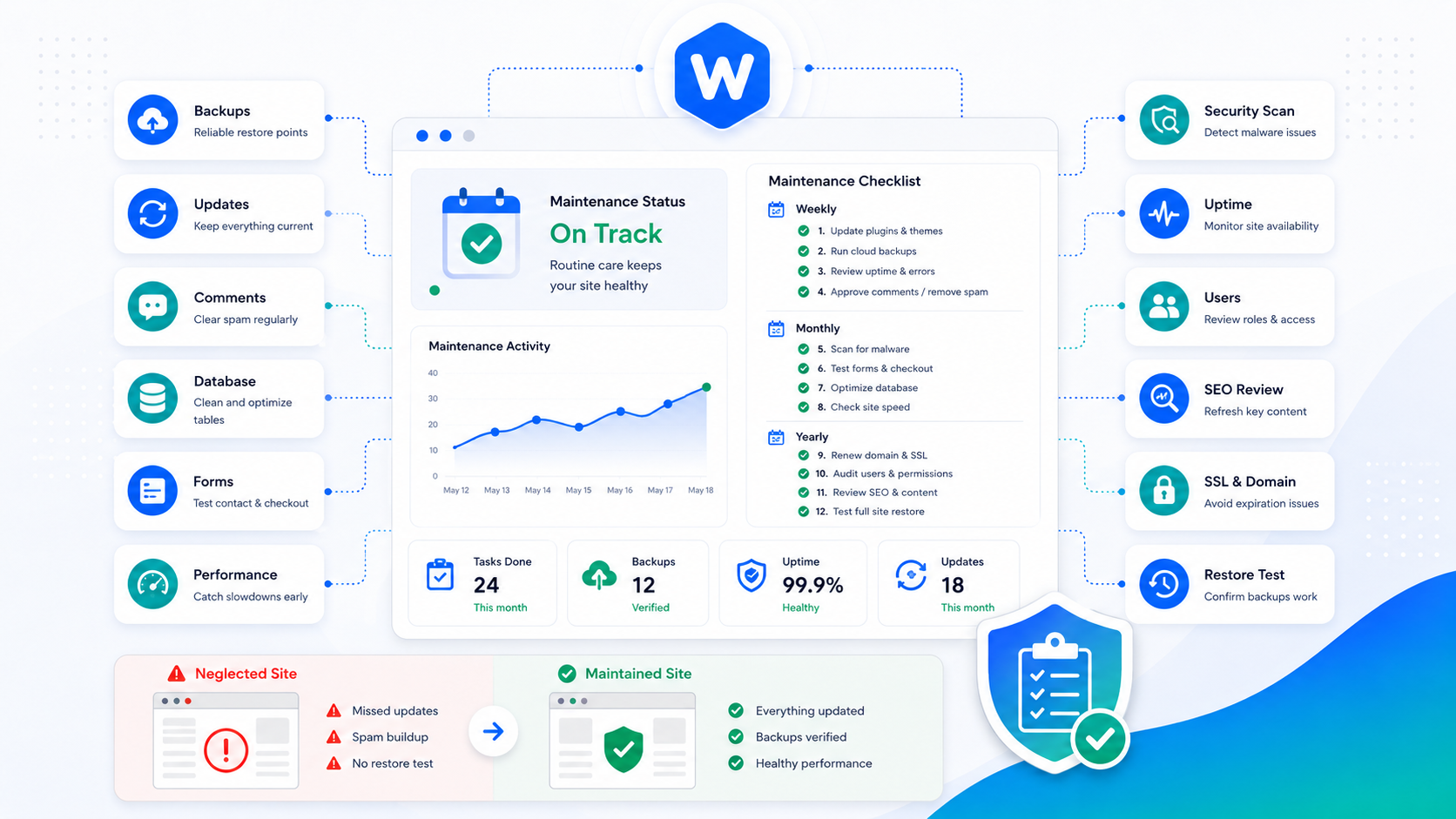
Most WordPress site owners think about maintenance after something breaks. A plugin update wipes out the homepage. Traffic drops and it turns out Google has been seeing error pages for two weeks. A vulnerability gets exploited that was patched months ago on every other site.
Reactive maintenance is expensive in time, money, and sometimes data. The alternative is a maintenance cadence — a structured set of tasks organized by how often they need to happen. The goal isn’t perfection; it’s catching problems before they become crises.
This checklist is organized by frequency. If you’re short on time, prioritize the weekly and monthly tasks — those are where the highest-impact issues surface.
Weekly tasks
Weekly maintenance is fast when the site is healthy. The goal is to catch problems early and confirm that automated systems are doing what they should.
Confirm backups completed
Backup plugins and services fail silently more often than they should. Check that your backup system ran successfully and that the backup file is accessible in your off-server storage location (not just on the same server). A backup that exists only on the same server provides no protection against disk failure or account compromise.
If you’re not getting weekly backup confirmation emails, set them up or check why they stopped.
Review uptime and security monitoring alerts
If you have uptime monitoring configured, check the dashboard for downtime events you may have missed. Review any security alerts from your monitoring service — failed login spikes, malware scan warnings, and firewall blocks are all worth investigating even if they look minor.
A site that went down at 3am for 20 minutes and came back up is not necessarily healthy. Understand why before dismissing it.
Check for available updates
Log into wp-admin and review the updates page for WordPress core, plugins, and themes. Don’t apply major updates blindly here — the weekly review is to inventory what’s pending, not necessarily to apply everything immediately.
Flag any plugin updates that address security vulnerabilities — these get fast-tracked ahead of the regular monthly update cycle.
Moderate comments and form submissions
Spam that makes it through filters should be marked and deleted. Review any contact form submissions for missed messages. If you’re using a moderation queue, approve legitimate comments and clear the spam queue.
Scan error logs
Server error logs (PHP error log, web server error log) surface problems that visitors see but don’t report. A recurring PHP notice or warning is often the first signal that a plugin update caused a compatibility issue. Set a reminder to check these; most hosting control panels expose them under a logs or advanced section.
Monthly tasks
Monthly maintenance is when you do the substantive work: applying updates, testing backups, auditing access, and reviewing performance. Budget 1–2 hours for a site of average complexity.
Apply plugin and theme updates (staged)
With a list of pending updates from your weekly reviews, apply them to a staging environment first. Confirm the site is functional — walk through key pages, test forms, and check the checkout flow if you’re running WooCommerce. Then push updates to production and repeat the spot-check.
Never apply a batch of plugin updates directly to production without testing. One update in twenty will cause a conflict, and it’s much easier to identify it in staging than to reverse-engineer it after the site is broken on live traffic.
For staging environment setup, see the WordPress staging environment guide.
Test a backup restore
Confirm a recent backup restores correctly by running through the restore process on your staging environment. This is not optional — a backup file that exists but can’t be restored is worthless. The WordPress backup strategy guide covers what a proper restore test looks like.
Most site owners skip this step until they need an actual restore and discover the backup was never working correctly.
Audit user accounts and access
Review the list of WordPress users and remove accounts that are no longer needed. Pay particular attention to administrator-level accounts — former developers, agencies, and employees who no longer need access should be deactivated or deleted, not just left dormant.
Check user roles and downgrade any accounts that have more access than they need. An editor-level account doesn’t need administrator access.
Review Core Web Vitals and performance metrics
Check Google Search Console’s Core Web Vitals report for any pages that have moved to “Needs Improvement” or “Poor” status. A performance regression caught monthly is far easier to address than one that has been accumulating for three months and has affected rankings.
If you made changes during the month (new plugins, new content, theme changes), correlate any metric changes with those changes.
Check for broken links
A broken internal link is a bad user experience and can affect crawl efficiency. Tools like Broken Link Checker (plugin) or a monthly crawl with Screaming Frog surface 404s across the site. Fix or redirect broken URLs and remove links to external pages that no longer exist.
Review search console for crawl errors
Open Google Search Console’s Coverage report and look for new crawl errors, pages moving to “Excluded,” or any unexpected changes in indexed page counts. An unexpected drop in indexed pages is a serious signal that warrants investigation — common causes include a misconfigured robots.txt, a sitewide noindex setting, or a server issue during a crawl. See the robots.txt guide for what not to block.
Yearly tasks
Yearly maintenance is about stepping back and asking bigger questions: Is the setup still right for current requirements? Are there technical debts accumulating that will cause problems?
Full security audit
Review the site’s security posture end-to-end: user account audit, file permission check, review of wp-config.php security settings, and a scan of server logs for unusual access patterns. Compare your current setup against the WordPress security guide and close any gaps.
Check whether any installed plugins have been removed from the WordPress.org repository (which often signals a security issue with the plugin) and replace them with alternatives.
Review and renew plugin and theme licenses
Premium plugins and themes require license renewals for continued updates. A lapsed license means you stop receiving security patches — the same outcome as abandoning updates entirely. Audit your licenses annually and renew before they lapse, or evaluate whether the plugin is still earning its cost.
Confirm PHP version and plan the next upgrade
Check your current PHP version and compare it against the PHP supported versions schedule. PHP versions reach end-of-life on a predictable schedule; running an EOL version means no security patches. If you’re within six months of your current PHP version’s EOL date, test your site for compatibility with the next version and plan the upgrade.
Hosting and plan review
Reassess whether your current hosting plan is right-sized for your current traffic and requirements. Hosting needs change: a site that launched on shared hosting at 500 visits per month may need a VPS or managed environment at 5,000 visits per month. Review performance metrics, resource utilization, and support quality, and compare costs.
This is also a good time to review your SLA requirements — if downtime has business consequences, make sure your hosting tier and monitoring match that exposure.
Content and SEO refresh
Review your top-performing content and update anything that has become stale. Data, statistics, tool recommendations, and pricing all go out of date. An article with a two-year-old publication date that still references deprecated tools can lose rankings to fresher content.
Check Google Search Console’s Performance report for pages with declining impressions or click-through rates — these are candidates for a content refresh before they fall further.
What to automate vs. do manually
Some tasks benefit from automation; others require judgment that automation can’t replicate.
Good candidates for automation: backup scheduling, uptime monitoring alerts, failed-login monitoring, security scan runs, plugin update checks (not the updates themselves).
Requires a human: evaluating whether an update is safe to apply, investigating a security alert, deciding whether a performance regression is significant enough to act on, managing user access decisions.
The goal is to automate monitoring and notification so that nothing falls through the cracks, while keeping the decisions that require judgment in human hands.
Who should own maintenance
Someone needs to be accountable for each task on this list. For in-house teams, that typically means a dedicated technical person with time blocked for maintenance. For sites without technical staff, maintenance responsibilities often get passed to whoever manages the website — which usually means they don’t happen consistently.
If your site is business-critical and you don’t have someone with WordPress expertise running this cadence reliably, a managed WordPress service handles it as part of the engagement — staged updates, tested backups, monitoring, and monthly reporting, without requiring you to own the technical execution.