
How to Migrate WordPress to a New Host Without Downtime
A step-by-step guide to migrating WordPress to a new host — moving files and the database, updating configuration, and cutting over DNS without taking your site offline.
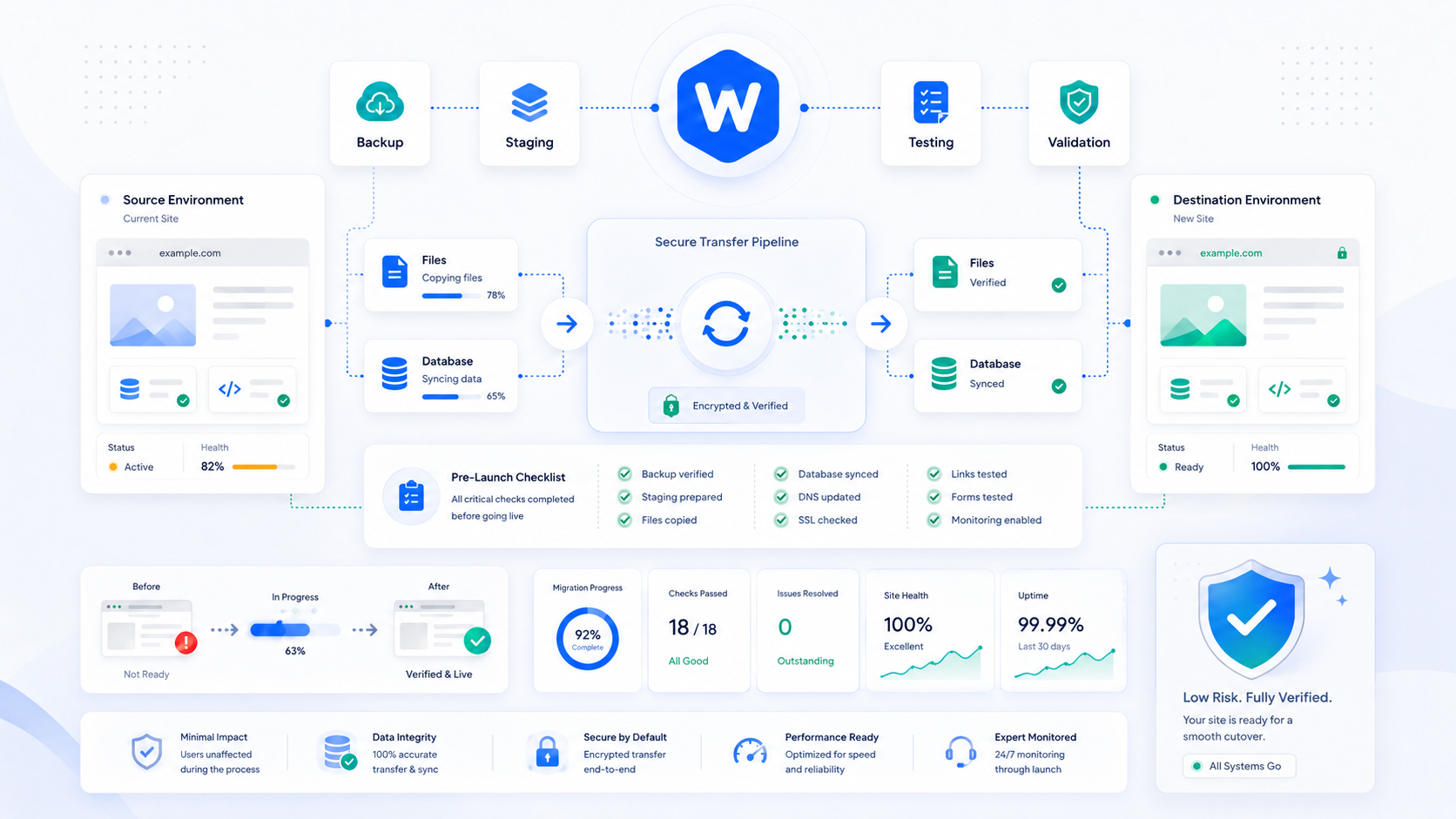
Moving a WordPress site to a new host has a reputation for being risky — stories of botched migrations, hours of downtime, and lost data circulate in WordPress communities. Most of that risk comes from migrating without a plan: changing DNS before testing the new environment, skipping database validation, or overwriting things in the wrong order.
A well-sequenced migration involves no downtime. You build and test the site on the new host before any visitor notices a change. DNS cutover is the last step, not the first.
Before you start: the prerequisites
A tested backup. Before doing anything, take a full backup of your current site and confirm it restores correctly. If the migration goes wrong, you need a recovery point. See the backup strategy guide for what a complete backup includes.
New host credentials. You’ll need database access (username, password, host, database name) on the destination host, and either FTP/SFTP or SSH access to transfer files.
A staging plan. If your new host supports staging environments, set up the migrated site there first. If not, you’ll test at a temporary URL before cutting over DNS.
A low-traffic window. Even with a no-downtime approach, plan your DNS cutover for a period of low traffic. There’s a brief propagation window where some visitors may hit the old host while others hit the new one.
Step 1: Export the database
The database contains your content, settings, and plugin data. Export it from the current host as a SQL file.
Using phpMyAdmin (available through most hosting control panels): select your WordPress database, click Export, choose the SQL format, and download the file.
Using WP-CLI (if you have SSH access):
wp db export production-backup.sql
Using mysqldump directly:
mysqldump -u dbuser -p dbname > production-backup.sql
Note the database prefix from your current wp-config.php ($table_prefix, usually wp_). You’ll need it.
Step 2: Copy the files
Transfer your WordPress files to the new host. What to copy:
wp-content/themes/— your active and child themeswp-content/plugins/— all installed pluginswp-content/uploads/— your media library (often the largest transfer)wp-config.php— you’ll edit this for the new environment.htaccess— your permalink and redirect rules- Any custom files in the WordPress root
What you don’t need to copy: WordPress core files (wp-admin/, wp-includes/, root PHP files). You can install a fresh WordPress on the new host and let it provide these — this ensures you’re running clean core files.
Transfer methods by access level:
- SFTP/FTP: Standard file transfer. Slow for large media libraries but works everywhere.
- rsync over SSH: Much faster for large transfers, handles incremental syncs for resync passes.
- Host-provided migration tool: Some hosts offer plugins or one-click migration tools. Worth using if available.
Step 3: Create the database on the new host
Create a new MySQL database on the destination host through phpMyAdmin or your host’s control panel. Note the database name, username, password, and host (usually localhost).
Import the SQL file you exported in Step 1:
-- In phpMyAdmin, select the new database and use the Import tab
-- Or via command line:
mysql -u newdbuser -p newdbname < production-backup.sql
If the new host uses a different database prefix or if you’re changing the table prefix (uncommon), update the prefix in the SQL file before importing.
Step 4: Update wp-config.php
Edit the wp-config.php on the new host to point to the new database:
define('DB_NAME', 'new_database_name');
define('DB_USER', 'new_database_user');
define('DB_PASSWORD', 'new_database_password');
define('DB_HOST', 'localhost');
Also update the $table_prefix if it changed. Generate fresh secret keys and salts from the WordPress secret key generator — the old ones from production aren’t invalid, but fresh ones invalidate any existing sessions, which is a good security practice post-migration.
Step 5: Test at a temporary URL
Before touching DNS, verify the site works on the new host. Most hosts provide a temporary domain or IP-based URL for this purpose.
The problem: WordPress hardcodes its URL in the database (siteurl and home options). If those are set to your production domain, WordPress will redirect away from the temporary URL.
The fix — update the URLs directly in the database using WP-CLI:
wp option update siteurl 'https://temp-url.newhost.com'
wp option update home 'https://temp-url.newhost.com'
Or via SQL:
UPDATE wp_options SET option_value = 'https://temp-url.newhost.com'
WHERE option_name IN ('siteurl', 'home');
With the temporary URL set, verify:
- The homepage loads correctly
- Images and media display (confirms the uploads directory transferred)
- A few interior pages load
- The wp-admin login works
- Any forms, checkout flows, or dynamic features function correctly
- Check error logs for PHP warnings or missing plugin dependencies
Step 6: Run a full search-replace for the production URL
Once you’ve confirmed the site works at the temporary URL, prepare for production by running a search-replace across the entire database to swap old production URLs for new ones. This handles URLs embedded in post content, widget settings, and plugin configuration that WP-CLI’s option update doesn’t cover.
wp search-replace 'https://old-domain.com' 'https://yourdomain.com' --all-tables
If you’re not changing the domain (same URL, different host), this step isn’t needed for the domain — but if you’re moving from HTTP to HTTPS, run it:
wp search-replace 'http://yourdomain.com' 'https://yourdomain.com' --all-tables
After the search-replace, update the siteurl and home options to the production domain:
wp option update siteurl 'https://yourdomain.com'
wp option update home 'https://yourdomain.com'
Step 7: Configure the new host environment
Before DNS cutover, verify the new host environment is correctly configured:
- PHP version — confirm it matches or exceeds the version running on your old host (PHP 8.1+ is recommended)
- PHP memory limit — WordPress typically needs at least 256MB; memory-intensive plugins may need more
- Permalink structure — visit Settings → Permalinks in wp-admin and click Save to regenerate
.htaccessrules on the new server - SSL/TLS certificate — confirm HTTPS is working at the new host before pointing DNS there
- Caching — configure your caching plugin for the new environment; some settings (like FastCGI cache paths) are server-specific
Step 8: DNS cutover
With the site tested and working on the new host:
- Lower your TTL — 24–48 hours before cutover, reduce your DNS TTL (time-to-live) to 300 seconds (5 minutes). This means DNS changes propagate faster after the switch.
- Update the A record — change your domain’s A record to point to the new host’s IP address.
- Monitor both hosts — keep the old host running for 24–48 hours after cutover. Some visitors may still be hitting the old host during propagation; make sure it continues serving the site.
- Watch error logs on the new host immediately after cutover for any issues that only appear with production traffic.
Step 9: Final checks and cleanup
After DNS has propagated and you’ve confirmed traffic is reaching the new host:
- Flush all caches (WordPress, CDN, browser) and verify a fresh load
- Confirm SSL is working correctly with the production domain
- Resubmit your sitemap in Google Search Console — DNS changes don’t affect your Search Console property, but resubmission after a significant infrastructure change is good practice
- Decommission the old host once you’re satisfied the migration is complete and stable (keep it for a few days as a fallback)
Common migration problems
White screen of death after import: Usually a database error — wrong credentials in wp-config.php, or an incomplete SQL import. Check error logs and verify the database connection.
Images missing: The uploads directory didn’t transfer completely. Check that wp-content/uploads/ is fully present on the new host and that file permissions allow the web server to read the files.
Redirect loops: Old siteurl/home values pointing somewhere unexpected, or HTTPS redirect rules conflicting. Check the database options and .htaccess.
Admin bar missing or logged-out immediately: Cookie domain mismatch. If you tested at a temporary URL and didn’t fully reset the siteurl/home to the production domain, WordPress may be setting cookies for the wrong domain.