
WordPress Plugin Management: How to Keep Your Site Stable and Secure
Plugins are the most common source of WordPress security vulnerabilities and update-related breakage. Here's how to manage them without constantly putting your site at risk.
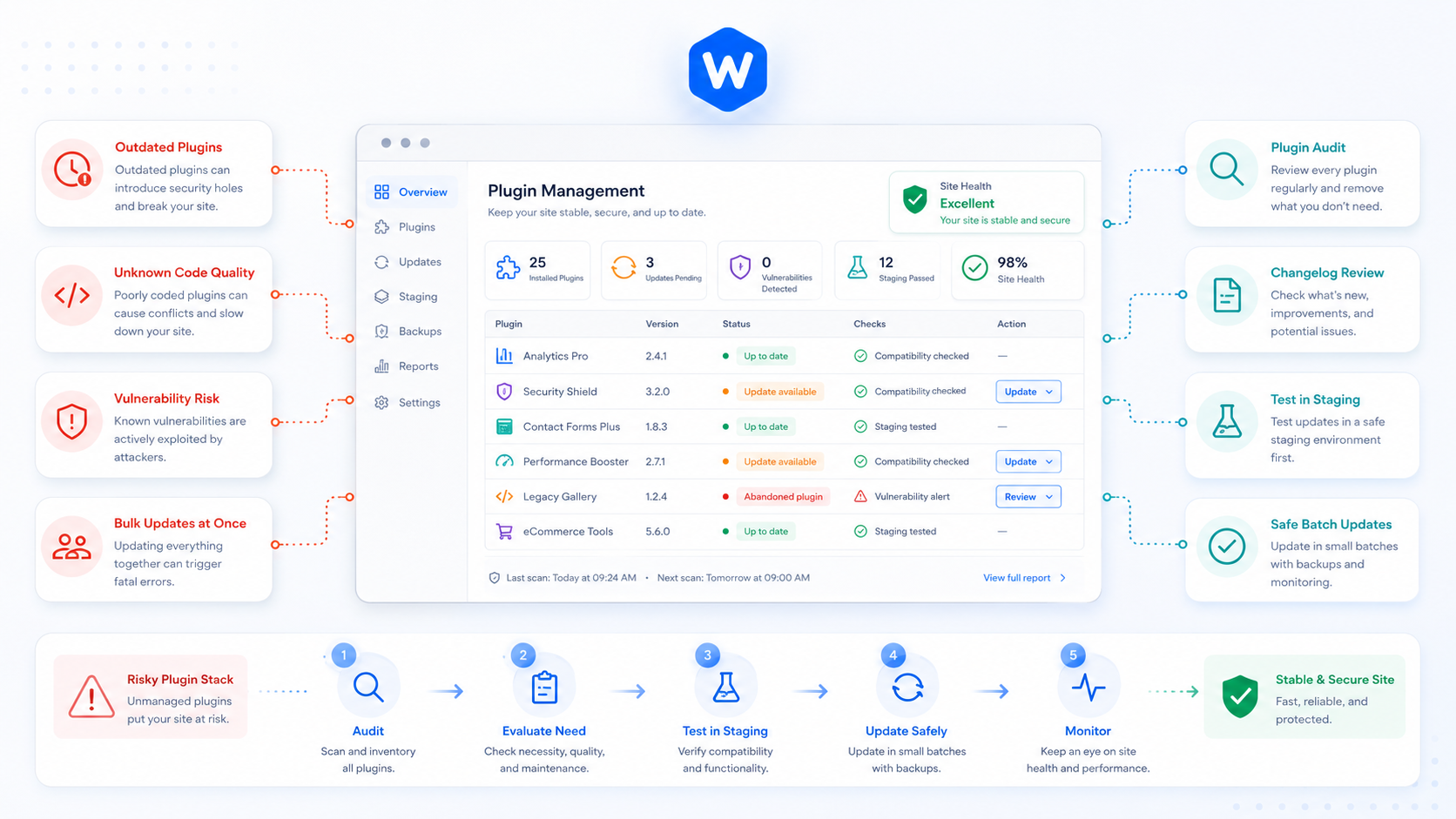
The average WordPress site runs between 15 and 25 plugins. Each one is a dependency — a piece of third-party code running on your server with access to your database, your files, and your users’ data. Managed well, plugins extend what WordPress can do without much overhead. Managed poorly, they’re the most common source of security vulnerabilities, performance problems, and unexpected breakage.
This guide covers how to evaluate plugins before installing them, how to update them without breaking your site, and how to audit what you’re already running.
Before you install a plugin
Most plugin problems start at installation. A few minutes of due diligence before installing saves hours of troubleshooting later.
Check the basics on the plugin directory page
The WordPress plugin directory shows several signals worth checking:
Last updated — A plugin that hasn’t been updated in over a year is a risk. It may not be compatible with the current WordPress version, and any vulnerabilities discovered since the last release haven’t been patched.
Active installations — More installations means more real-world testing and more community scrutiny. A plugin with 1 million active installs is more likely to be maintained than one with 200.
Tested up to — This shows which WordPress version the developer last tested against. If it’s more than one major version behind, proceed with caution.
Support forum — Skim the recent support threads. If there are unanswered reports of compatibility issues or broken functionality from the last few months, that’s a signal about the developer’s responsiveness.
Check for known vulnerabilities
Before installing any plugin, search the WPScan vulnerability database (wpscan.com/plugins) for its name. If there are unpatched CVEs, don’t install it — or wait until a patched version is available.
Evaluate whether you need it at all
Before adding a plugin, ask whether the functionality could be achieved with a small amount of custom code instead. A plugin that adds one shortcode or one filter is often better replaced by a few lines in your theme’s functions.php or a minimal custom plugin. Fewer dependencies means fewer attack surfaces and fewer things to update.
How to update plugins safely
This is where most WordPress site owners get into trouble. Applying plugin updates directly to a live production site is the default behavior — but it’s also how sites get broken on a Friday afternoon.
The case for staging
A staging environment is a copy of your site that mirrors production but isn’t publicly accessible. Updates go to staging first, you verify the site works correctly, then you push to production.
This isn’t just for large sites. A page builder update that changes how your layouts render, or a security plugin update that locks you out of wp-admin — these happen on small sites as much as large ones.
If your host doesn’t provide a staging environment, this is worth factoring into your hosting decision.
Update in batches, not all at once
Applying 12 plugin updates simultaneously makes it impossible to know which one caused a problem if something breaks. Update in small batches — three or four at a time — and check the site after each batch.
Pay particular attention to:
- Page builders — Elementor, Divi, Beaver Builder, and similar tools have deep tentacles into your theme and content. Major version updates deserve extra scrutiny.
- Security plugins — A misconfigured update to a security plugin can lock you out of wp-admin or block legitimate traffic. Have a recovery plan before applying these.
- Plugins touching your database — Plugins that run database migrations on update need to be applied carefully, especially on sites with large tables.
Read the changelog
For major version bumps (2.x to 3.x, for example), read the changelog before updating. Plugin developers typically document breaking changes, deprecated functionality, and database migrations. A two-minute read can prevent a two-hour incident.
Keep an eye on PHP compatibility
Plugin updates sometimes introduce code that requires a higher PHP version than you’re running. If a plugin update fails or produces fatal errors immediately after applying, a PHP version mismatch is a common cause. Check the plugin’s requirements before updating if you’re running PHP 7.4 or below.
Auditing what you’re already running
If you’ve inherited a WordPress site or haven’t audited your plugins recently, it’s worth running through your installed plugin list with fresh eyes.
Deactivate and delete unused plugins — Inactive plugins are still present on the filesystem and can still be exploited if they contain vulnerabilities. Deactivating isn’t enough — delete plugins you’re not using.
Look for duplicated functionality — It’s common to find two plugins doing essentially the same thing: two caching plugins, two SEO plugins, two form builders. Identify the one you’re actually using and remove the other.
Check for abandoned plugins — A plugin that was last updated in 2019 is a liability regardless of how well it works today. Find a maintained alternative or replace it with custom code.
Audit premium plugins — Premium plugins installed outside the WordPress directory don’t receive automatic update notifications unless you’re actively licensed. Unlicensed premium plugins don’t receive security patches. Check that all premium licenses are current.
Keeping track over time
Plugin management isn’t a one-time task — it’s an ongoing responsibility. A few practices that help:
Set a maintenance schedule — Review and apply plugin updates on a defined schedule rather than ignoring them until something breaks. Monthly is reasonable for most sites; weekly makes sense for high-traffic or e-commerce sites.
Keep a record of custom configurations — Some plugins have configuration that’s easy to lose in an update. Document non-obvious settings so you can restore them if an update resets them.
Monitor for new vulnerabilities — New CVEs in WordPress plugins are disclosed regularly. The WPScan database and Wordfence’s vulnerability feed are reliable sources. If a plugin you’re running has a known unpatched vulnerability, that’s an immediate priority regardless of your normal update schedule.