
WordPress Security: A Practical Guide for Site Owners
A no-nonsense security guide covering the most common WordPress vulnerabilities, how attackers exploit them, and practical steps to lock down your site.
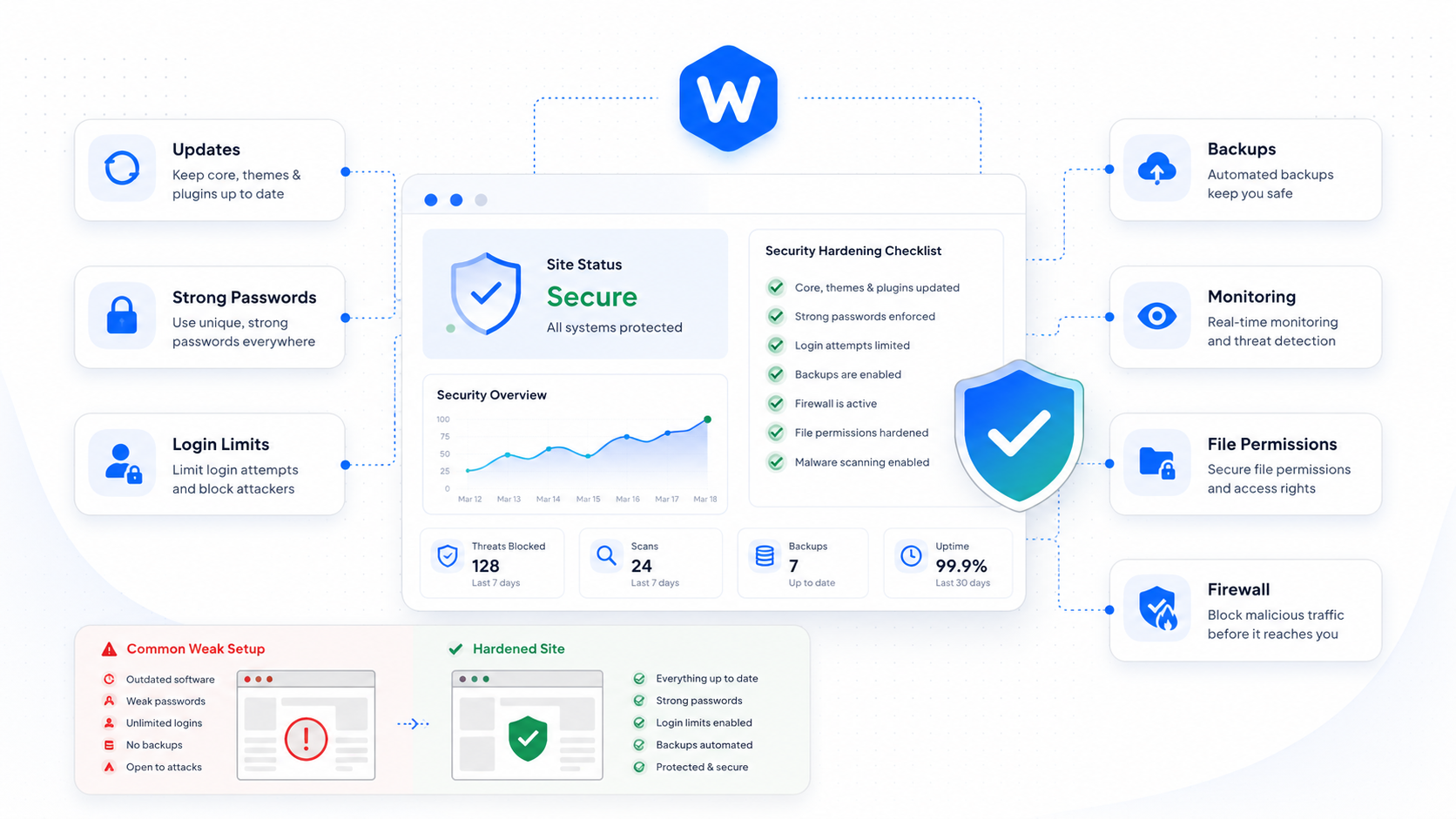
WordPress powers roughly 43% of the web, which makes it the most targeted CMS by a wide margin. That doesn’t mean WordPress is inherently insecure — it means that attackers have well-developed playbooks for exploiting common mistakes, and most WordPress site owners make those mistakes.
This guide covers where attacks actually come from, what they look like, and what to do about them — in plain language, without trying to sell you a security plugin.
Where WordPress attacks actually come from
Before hardening anything, it helps to understand the threat model. The vast majority of WordPress compromises fall into a handful of categories:
Vulnerable plugins and themes — This is by far the most common attack vector. A plugin with a known vulnerability gets exploited across thousands of sites simultaneously. Attackers scan for version strings in your page source and HTTP headers, identify which sites are running vulnerable versions, and automate the exploitation.
Weak credentials — Brute-force attacks against wp-login.php are constant. If your admin account uses a weak password or a predictable username like “admin,” this is a live threat.
Abandoned sites — Sites that haven’t been updated in months or years are low-hanging fruit. Attackers specifically target sites running WordPress versions more than two releases behind.
Compromised hosting environments — A vulnerability in shared hosting can allow an attacker to move laterally from a compromised neighbor site to yours.
File upload vulnerabilities — Plugins that allow file uploads without proper validation can be exploited to upload malicious PHP files.
The hardening baseline
These steps address the most common attack vectors without requiring technical expertise:
Keep everything updated
WordPress core, every installed plugin, every installed theme — even ones you don’t actively use. Inactive plugins are still present on the filesystem and can be exploited.
Enable automatic updates for minor releases. For major releases and plugins with significant changelogs, test on a staging environment first.
Use a strong, unique password for every account
Every WordPress user account — especially admin accounts — should have a unique, strong password. A password manager makes this practical. Enable two-factor authentication if your site handles sensitive data.
Change the admin username if you’re still using “admin.” It’s one of the first usernames attackers try.
Limit login attempts
The wp-login.php endpoint accepts unlimited login attempts by default. A simple rate limiter — whether through a security plugin or server configuration — reduces the effectiveness of brute-force attacks significantly.
Disable features you don’t use
XML-RPC — Unless you’re publishing from a mobile app or using Jetpack features that depend on it, disable XML-RPC. It’s a common attack surface that most sites don’t need.
File editing in wp-admin — The Appearance > Theme Editor and Plugins > Plugin Editor allow direct file editing through the browser. Disable this with define('DISALLOW_FILE_EDIT', true); in wp-config.php.
Directory indexing — If someone navigates to a directory URL on your site (e.g., /wp-content/uploads/), they shouldn’t see a file listing. Block this with an .htaccess rule.
Move or protect wp-config.php
If your hosting environment allows it, move wp-config.php one directory above the web root. If you can’t move it, restrict access to it via .htaccess.
Set correct file permissions
WordPress files should be owned by the web server user or a dedicated user — not world-writable. Standard recommendations: 644 for files, 755 for directories, 600 for wp-config.php.
What to monitor
Hardening is a point-in-time activity. Ongoing security requires monitoring:
File integrity monitoring — Know when files on your server change unexpectedly. An unexpected change to a core WordPress file or a plugin file is often the first indicator of a compromise.
Failed login monitoring — Track failed login attempts by IP address. A spike in failures from a single IP indicates a brute-force attempt in progress.
Vulnerability database monitoring — New vulnerabilities in WordPress plugins are discovered constantly. Track the WPScan vulnerability database or use a plugin that monitors for new CVEs affecting your installed plugins.
Uptime monitoring — A compromised site often experiences downtime as a side effect of malicious activity. If your site goes down unexpectedly, treat it as a potential security incident until proven otherwise.
If you get hacked
A compromised WordPress site is recoverable. The steps:
- Take the site offline — Put it in maintenance mode or restrict access while you investigate. A live compromised site can spread malware to visitors or send spam.
- Restore from a known-clean backup — If you have a backup from before the compromise, restore it. This is the fastest path to a clean site.
- If no clean backup exists — Scan all files for malware using a tool like Maldet or the WPScan API. Remove malicious files. Audit user accounts for unauthorized additions.
- Reset all credentials — Admin passwords, database password, secret keys in wp-config.php, FTP/SSH credentials.
- Investigate the entry point — Understand how the attacker got in so you can close the door. Common findings: outdated plugin, compromised FTP credentials, weak admin password.
- Harden before going back online — Apply the steps in this guide before making the site publicly accessible again.
The limits of plugins
Security plugins are useful for implementing some of the steps above — rate limiting, file integrity monitoring, malware scanning. But they’re not a substitute for the fundamentals: keeping software updated, using strong credentials, and monitoring actively.
A security plugin installed on a site running a vulnerable outdated plugin is not a secure site.