
How to Fix a Slow WordPress Admin Dashboard
A slow WordPress admin dashboard is usually caused by one of four things: the Heartbeat API, WP-Cron bloat, plugin conflicts, or server resource limits. Here's how to diagnose and fix each one.
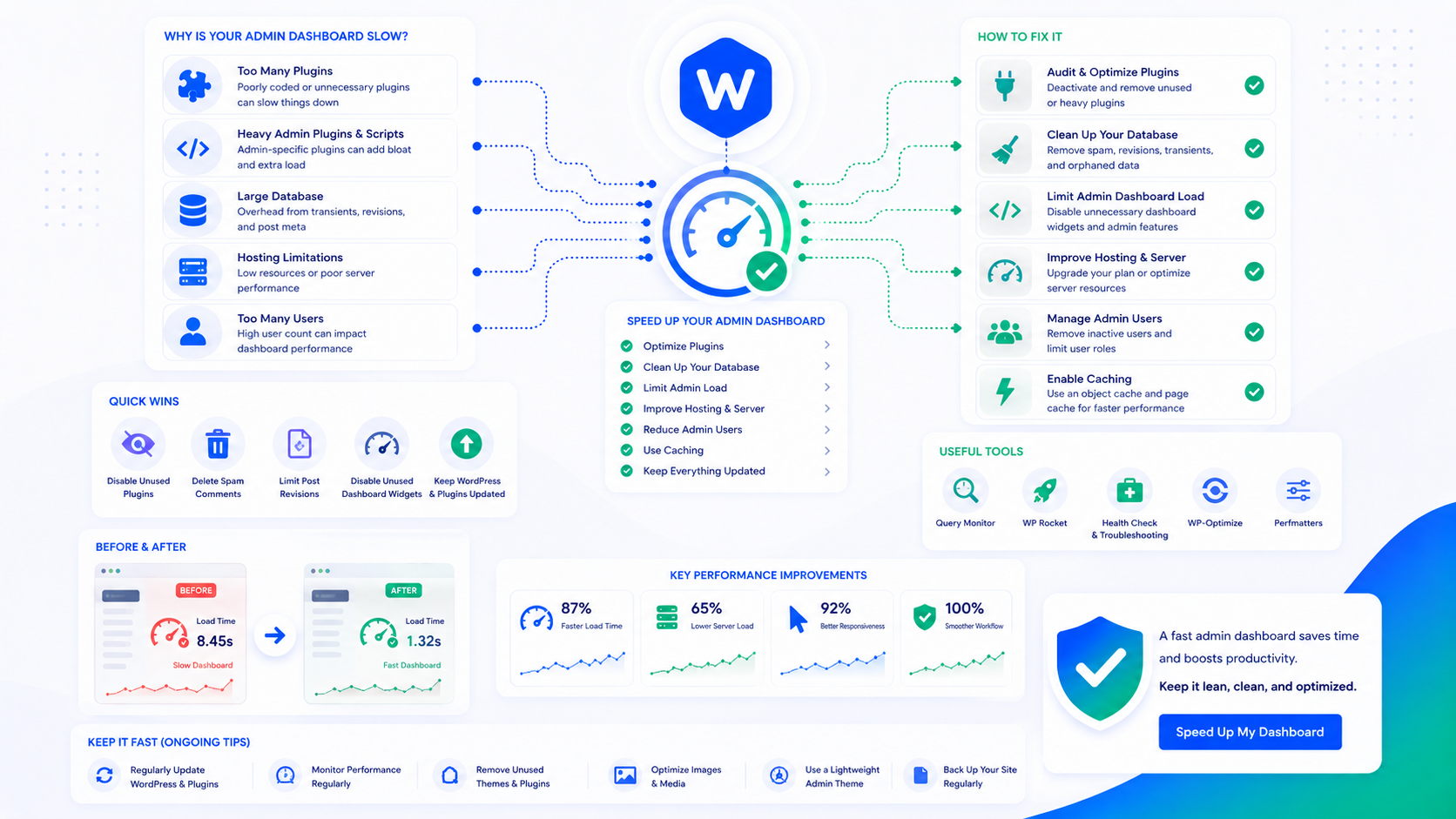
Frontend performance gets all the attention — Core Web Vitals, LCP, page load time. But a slow WordPress admin dashboard is a real productivity problem: every page load in wp-admin, every post save, every plugin settings update is slower than it should be. On a site with active editorial staff or frequent plugin work, admin sluggishness adds up to significant lost time.
Admin slowness has a different root cause set than frontend slowness. Your caching plugin helps visitors but doesn’t cache wp-admin pages for editors. The fixes are different.
Diagnose before fixing
Before changing settings, measure. Install Query Monitor (free, WordPress.org) on your site. It adds a toolbar item in wp-admin that shows:
- Total page generation time for the current admin page
- Number of database queries and which queries are slow
- HTTP API calls made during page load
- PHP errors and notices
Load a few wp-admin pages with Query Monitor active. Note the total time, query count, and any queries flagged as slow. This tells you what to optimize rather than guessing.
A page generating in under 300ms with under 50 queries is reasonable. A page taking 2–3 seconds with 300 queries has a real problem to fix.
The Heartbeat API
WordPress’s Heartbeat API sends regular AJAX requests from your browser to the server to handle autosaves, session management, and post lock notifications. By default, it fires every 15 seconds in the post editor. On a shared server, these frequent AJAX requests consume PHP processes that could be serving visitors.
Check Heartbeat activity in Chrome DevTools (Network tab, filter by XHR, look for requests to admin-ajax.php). If you see requests every 15 seconds from wp-admin, Heartbeat is running at its default cadence.
Reduce the Heartbeat frequency in wp-config.php:
// Fire Heartbeat every 60 seconds instead of 15
add_filter('heartbeat_settings', function($settings) {
    $settings['interval'] = 60;
    return $settings;
});
Or disable it entirely in wp-admin (Heartbeat in the post editor handles autosaves — disabling it means no autosave, only manual saves):
add_action('init', function() {
    wp_deregister_script('heartbeat');
});
The Heartbeat Control plugin provides a UI for this if you prefer not to add code.
WP-Cron bloat
WordPress uses a virtual cron system (WP-Cron) to schedule tasks: checking for updates, sending scheduled emails, running backup jobs, clearing caches. WP-Cron fires on page load — when a visitor or admin loads a WordPress page, WordPress checks whether any scheduled tasks are due and runs them.
On high-traffic sites, this fires constantly. On low-traffic sites, scheduled tasks may be significantly delayed. And on sites with many plugins that each schedule their own cron events, the cron queue can become bloated with redundant or stuck events.
Check the current cron queue with WP-CLI:
wp cron event list
Look for:
- Events scheduled far in the past (overdue, stuck)
- Duplicate events running very frequently
- Events from plugins you’ve uninstalled (orphaned cron jobs)
Delete stuck or orphaned cron events:
wp cron event delete event_hook_name
For high-traffic sites, disable WP-Cron and use a real server cron instead. Add to wp-config.php:
define('DISABLE_WP_CRON', true);
Then add a server cron job to trigger WordPress’s cron endpoint on a real schedule:
# In crontab: run every 5 minutes
*/5 * * * * curl -s https://yourdomain.com/wp-cron.php?doing_wp_cron > /dev/null 2>&1
Real server cron is more reliable than WP-Cron for scheduled backups, emails, and publishing — and reduces the overhead added to each page load.
Plugin conflicts in the admin
Some plugins load significant resources on every wp-admin page regardless of whether the current page needs them. A plugin that loads its CSS, JavaScript, and makes API calls on the Posts list screen when you’re only editing a post is adding unnecessary overhead.
Query Monitor’s “Scripts” and “Styles” panels show which plugins are loading assets on the current admin page. If a plugin is loading substantial assets on pages unrelated to its function, it’s contributing to admin slowness.
Steps to identify the culprit:
- Note your baseline admin load time with Query Monitor
- Deactivate plugins one at a time (or in groups) and check if load time improves
- When you find the slow plugin, check if it has a setting to limit which admin pages it loads on
Plugin developers can use get_current_screen() to conditionally load assets only on relevant admin pages. If a plugin doesn’t do this and there’s a significant performance impact, it’s worth reporting to the developer or looking for an alternative.
PHP memory limits
WordPress requires a minimum PHP memory limit of 64MB, but complex sites with many plugins regularly need 256MB or more. When PHP runs out of memory, it fails and generates errors. When it’s operating near the limit, it’s garbage-collecting frequently, which adds latency.
Check your current memory limit in wp-admin → Tools → Site Health → Info → Server. You can also add define('WP_MEMORY_LIMIT', '256M'); to wp-config.php, though this only works if your hosting plan allows it — the host’s server-level PHP configuration sets the ceiling.
If you’re hitting memory limits (visible as fatal errors in logs), increase the limit via wp-config.php or contact your host. If the memory limit is high but admin is still slow, memory isn’t the issue — look at query count and external HTTP requests instead.
External HTTP requests in admin
Some plugins make outbound HTTP requests during admin page loads: checking for license validity, fetching remote configuration, pulling in widget data. These external requests add their response time to your admin page load time. A plugin that makes a 500ms call to an external API on every wp-admin page is adding half a second to everything.
Query Monitor’s “HTTP API Calls” panel shows outbound requests made during the page load, including URLs, methods, and response times. A request to a license server, a remote font provider, or an analytics endpoint that consistently adds 300ms+ is a candidate for investigation.
Some plugins allow you to configure whether they check licenses on every page or only occasionally. For plugins that don’t offer this control, the overhead is a real cost of using that plugin.
Object caching for admin pages
wp-admin pages aren’t served from your page cache — they’re dynamic and user-specific. But they do benefit from object caching (Redis/Memcached). Database queries that would otherwise repeat across admin page loads are cached at the object level, reducing per-page query times.
If you don’t have persistent object caching enabled, enabling Redis is one of the most impactful admin performance improvements available. The WordPress caching guide covers object cache setup in detail.