
How to Reduce TTFB on WordPress (Time to First Byte)
TTFB is the upstream dependency for every other performance metric. If it's slow, nothing else you do to WordPress will fix your load time. Here's what causes it and how to fix it.
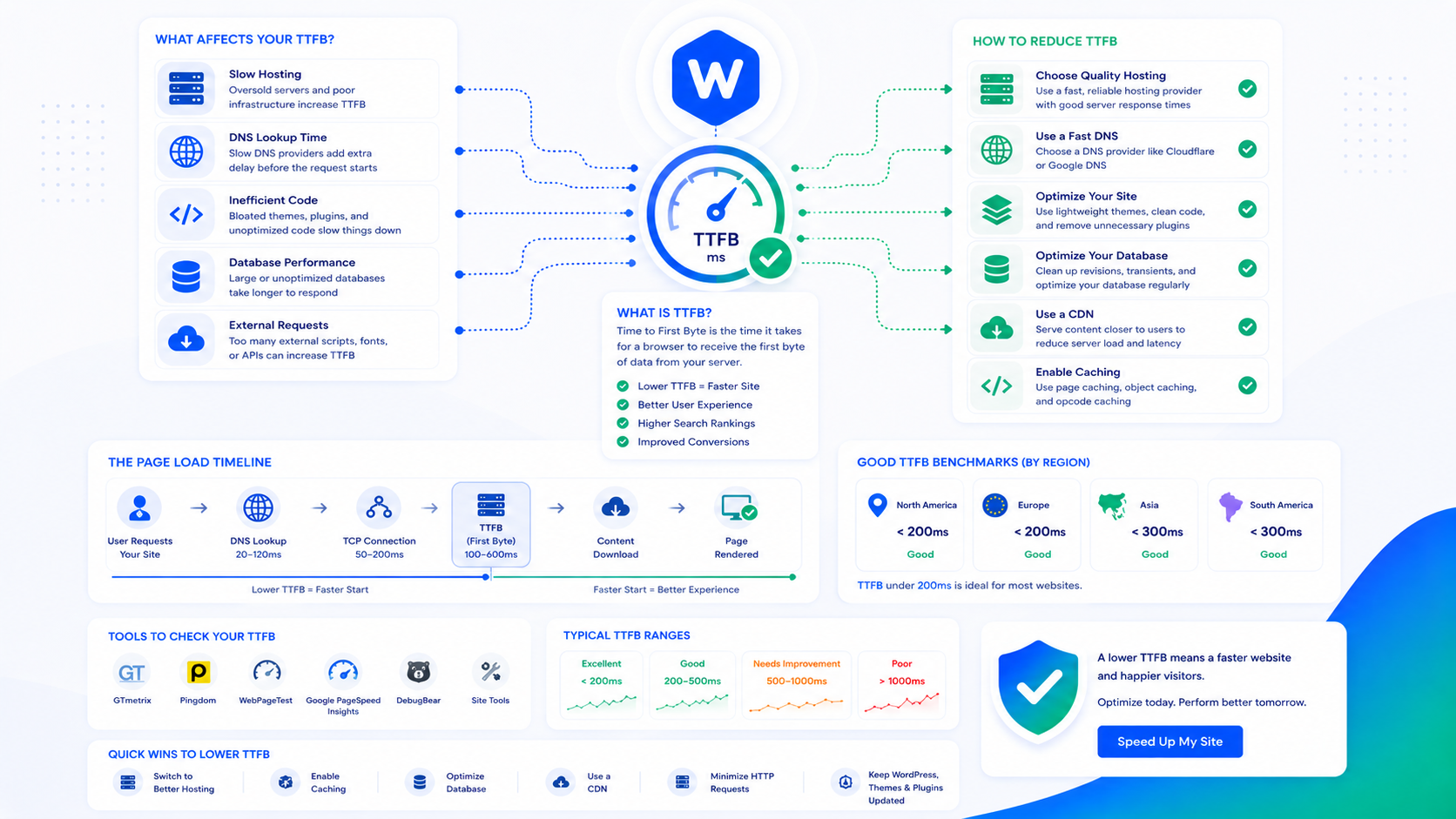
Time to First Byte (TTFB) measures how long it takes from the moment a browser requests a page to when it receives the first byte of the server’s response. It’s not how long the page takes to load — it’s how long the server takes to start responding.
TTFB matters for WordPress performance because it’s an upstream dependency for everything else. Your LCP can’t start until the browser has the HTML. The HTML can’t start arriving until the server sends it. If your server takes 1.5 seconds to generate a response, that 1.5 seconds is added to every other metric, regardless of how optimized your frontend is.
Google’s threshold for TTFB is 800ms for a “good” result. Most unoptimized WordPress sites are well above this on the origin server.
What happens before the first byte
TTFB includes three components:
- DNS resolution — looking up your domain’s IP address (typically 10–100ms, cached after the first request)
- TCP connection and TLS handshake — establishing the connection and negotiating HTTPS (50–200ms depending on geography and server)
- Server processing time — PHP executing WordPress, querying the database, and generating HTML (this is where most TTFB problems live)
The first two are largely outside your direct control (CDN and server geography help). Server processing time is where WordPress optimization applies.
Why WordPress has a high TTFB by default
WordPress is a dynamic CMS. Every page request triggers:
- PHP startup (loading the interpreter)
- WordPress bootstrap (loading wp-config.php, establishing database connection, loading active plugins)
- Plugin and theme execution (running action/filter hooks, processing templates)
- Database queries (often 30–100+ queries for a typical WordPress page)
- HTML assembly and output
On an unoptimized site, this entire sequence runs for every request from every visitor. The cumulative time is your TTFB.
On a well-configured site, cached pages bypass most of this: the HTML is served from disk or memory without running PHP at all. The “first byte” of a cached page arrives in 20–50ms.
Fix 1: Full-page caching
Page caching is the single largest TTFB improvement available for WordPress. A cached page is served directly from storage without running PHP or hitting the database. TTFB drops from hundreds of milliseconds to tens of milliseconds.
The WordPress caching guide covers page cache setup in detail. For TTFB specifically, the key configuration is serving cached files without loading WordPress — the option labeled something like “serve cache files to unauthenticated users without loading WordPress” in WP Rocket, or equivalent in other plugins. Without this option, PHP still starts up to check the cache, which adds overhead.
Server-level caching (Nginx FastCGI cache, Varnish) produces the lowest possible TTFB — the web server itself serves cached pages without invoking PHP at all.
Fix 2: PHP 8.x and OPcache
PHP version has a direct impact on how fast PHP processes execute. PHP 8.1 is approximately 2–3× faster than PHP 7.4 on equivalent workloads. If you’re running an older PHP version, upgrading is one of the highest-ROI server-side improvements available.
OPcache compiles PHP scripts to bytecode and stores them in memory. Without OPcache, PHP parses and compiles each file on every request. With OPcache, compilation happens once and the bytecode is reused. For WordPress, which includes hundreds of PHP files bootstrapped on every request, OPcache reduces startup time significantly.
Check your current PHP version and OPcache status in wp-admin → Tools → Site Health → Info → Server. OPcache should show as enabled. If it’s disabled, contact your host — it should be on by default on any modern hosting stack.
OPcache performs best with adequate memory allocation. The opcache.memory_consumption setting (typically in php.ini) should be at least 128MB for a WordPress site; 256MB is better for sites with many plugins.
Fix 3: Redis or Memcached object caching
WordPress executes many database queries on every page load. Even with page caching serving anonymous traffic, logged-in users, admin pages, and non-cacheable dynamic pages still hit the database on each request.
Object caching stores the results of database queries in memory (Redis or Memcached). Subsequent requests for the same data skip the database entirely. On sites with many plugins, high traffic, or complex queries, object caching can reduce TTFB for non-cached pages by 30–50%.
Setup: install Redis on your server, install the Redis Object Cache plugin, and configure the connection. The caching guide covers this in the object caching section.
Fix 4: Database query optimization
Even with object caching, slow queries affect TTFB for uncached requests. Query Monitor identifies slow queries and high query counts — the starting point for database optimization.
Common WordPress database bottlenecks:
Slow plugin queries. Some plugins run unoptimized queries on every page load: full table scans, queries without index coverage, or multiple queries that could be combined. Query Monitor’s Queries panel shows per-query times and identifies the responsible plugin or theme function.
Autoloaded option bloat. WordPress loads all autoloaded wp_options rows into memory on bootstrap. A database with megabytes of autoloaded data (from plugin sprawl over years) adds significant overhead. The database optimization guide covers auditing and cleaning up autoloaded data.
Missing database indexes. Some plugins create their own database tables without proper indexes. A query that scans an unindexed table grows slower as data accumulates. Identify with EXPLAIN in MySQL:
EXPLAIN SELECT * FROM wp_custom_plugin_table WHERE user_id = 123;
If the output shows type: ALL with a large rows estimate, the query is doing a full table scan. Adding an index on the column resolves it.
Fix 5: Server resources and configuration
TTFB problems sometimes come from server resource constraints rather than WordPress configuration:
Insufficient PHP-FPM workers. Under concurrent traffic, WordPress requests queue behind each other if there aren’t enough PHP workers to process them in parallel. The TTFB you see under load is higher than what you measure on a quiet server. Tune pm.max_children in your PHP-FPM pool configuration to match available server RAM.
MySQL slow query log. Enable MySQL’s slow query log to capture queries that exceed a time threshold:
slow_query_log = 1
slow_query_log_file = /var/log/mysql/slow.log
long_query_time = 1
Review the slow log to identify queries consuming disproportionate time.
Shared hosting resource caps. On shared hosting, your PHP processes compete with other tenants on the same server for CPU, RAM, and I/O. TTFB variability (fast sometimes, slow other times) often indicates a shared environment under load. The only fix is upgrading to a less contended hosting tier.
Measuring TTFB accurately
TTFB varies by:
- Whether the response is cached or uncached
- Geographic distance between the test client and the server
- Server load at the time of the test
- Whether a CDN is involved
For meaningful measurements:
- Test from multiple geographic locations (WebPageTest supports this)
- Test both cached and uncached responses (disable cache for one test)
- Test under simulated load, not just idle
- Use the TTFB field data from Google Search Console (real user data from CrUX) rather than relying solely on lab tests
Google’s Core Web Vitals report in Search Console shows TTFB-influenced metrics from real users, which is more representative than single lab measurements. The Core Web Vitals guide covers how to interpret this data in context.