
WordPress Uptime Monitoring: What to Watch and Why
Knowing your site is down before your customers do requires monitoring beyond a basic ping check. Here's what to monitor, which tools to use, and how to set up alerting.
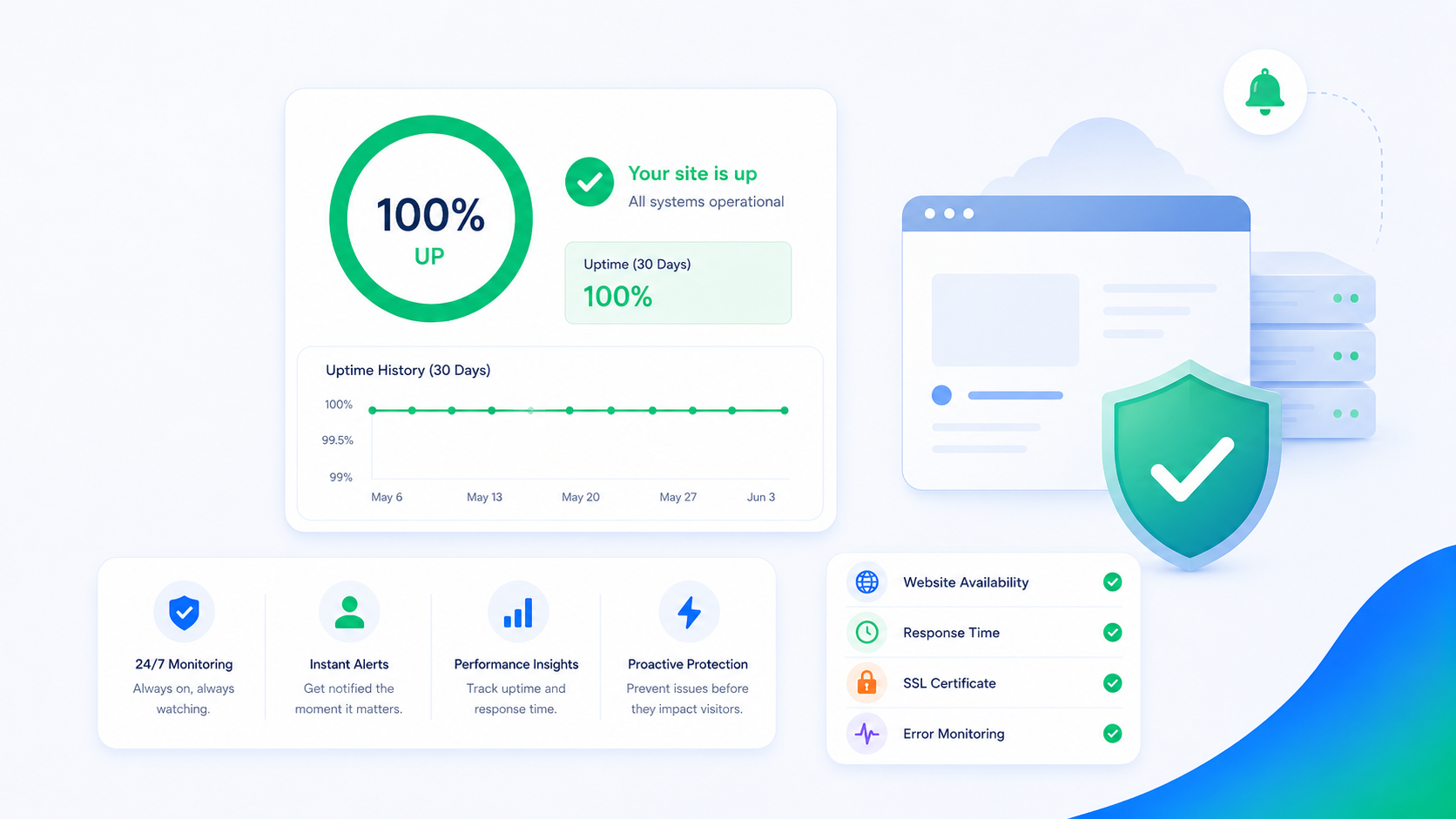
If your WordPress site goes down and nobody has monitoring set up, you find out when someone calls you, when you happen to check, or when you notice traffic has collapsed in analytics. All of these happen significantly after the downtime started. On a site where downtime has business consequences — lost orders, missed leads, damaged reputation — the delay between the site going down and you knowing about it matters.
Uptime monitoring is the infrastructure that closes that gap. This guide covers what to monitor, which tools handle each use case, and how to configure alerting that’s actually useful rather than noisy.
What “uptime monitoring” actually means
Basic uptime monitoring checks whether a URL returns a successful HTTP response. A monitor pings https://yourdomain.com/ every minute, confirms it gets a 200 status code, and alerts if it gets anything else or times out.
This catches the obvious: your server is down, your DNS isn’t resolving, your SSL certificate expired. It doesn’t catch everything.
What a basic HTTP check misses:
- A page that returns 200 but shows an error in the HTML (“Database connection failed”)
- A form that’s broken but the page itself loads fine
- A checkout flow that returns 200 but doesn’t process orders
- Slow degradation — the site is “up” but taking 8 seconds to load, which is functionally down for conversions
More complete monitoring adds keyword checks, transaction monitoring, and performance thresholds on top of the basic availability check.
Basic uptime monitoring: tools and setup
UptimeRobot (free) is the standard starting point. It checks your site every 5 minutes (free tier) or 60 seconds (paid), sends alerts via email or SMS when a check fails, and maintains a public status page if you want one. The free tier covers most basic monitoring needs.
Setup: add a monitor for your root domain, then add monitors for your critical paths — the homepage, a key landing page, your sitemap URL. Configure alerts to send immediately on failure (don’t set multi-failure thresholds that delay notification).
Better Uptime (paid, ~$20/month) extends this with:
- Incident management and on-call scheduling
- Status page with subscriber notifications
- Response time tracking
- Historical uptime reports
Pingdom is a mature option with detailed performance tracking alongside availability monitoring. More appropriate for larger sites with SLA requirements.
Your host’s monitoring. Some managed WordPress hosts include uptime monitoring in the plan. Useful, but note the conflict of interest: your host’s monitoring system may not alert you to problems their own infrastructure caused until after they’ve resolved them internally. Independent third-party monitoring is more reliable for accountability.
SSL certificate monitoring
SSL certificates expire. When they do, your site throws a browser security warning that most visitors won’t click through. It’s one of the more avoidable causes of effective downtime.
Most uptime monitoring services include SSL expiration monitoring — they’ll alert you 30 days before the certificate expires. Enable this if it’s available. Let’s Encrypt certificates auto-renew, but the auto-renewal process can fail silently if your server configuration changes or if DNS verification fails.
Add an explicit SSL expiration check in your monitoring tool, separate from your basic uptime check, so you get early warning even if auto-renewal is configured.
Keyword checks: catching functional failures
A keyword check loads a URL and confirms that a specific word or phrase appears in the response body. This catches the class of failures where the page returns 200 but isn’t actually working:
- Homepage returns 200 but shows “Error establishing a database connection” — a keyword check for “Error establishing” would catch this
- WooCommerce cart page loads but shows “Your cart is empty” for everyone — a keyword check can catch unexpected empty states
- A maintenance mode plugin that activates unexpectedly
Configure keyword checks for:
- Your site name or a distinctive piece of content that confirms the correct page loaded
- An explicit check for error messages you want to catch (
"Error establishing a database connection","Fatal error")
UptimeRobot supports keyword monitors on paid plans. Better Uptime and Pingdom both support this on their standard tiers.
Transaction monitoring: testing the full flow
The most advanced form of uptime monitoring is synthetic transaction monitoring: a scripted sequence of browser interactions that tests a complete user workflow end-to-end. For an e-commerce site, that might look like:
- Load the homepage
- Navigate to a product page
- Add the product to cart
- Proceed to checkout
- Confirm the checkout form renders correctly
If any step fails, you get alerted. This is the only monitoring approach that catches “the cart is broken” before a real customer discovers it.
Tools for transaction monitoring:
- Checkly — headless browser (Playwright) scripts that run on a schedule; developer-friendly
- Datadog Synthetic Monitoring — enterprise-grade, more expensive
- Pingdom Real User Monitoring — combines synthetic and real-user data
Transaction monitoring is more complex to set up and maintain than basic checks, but for WooCommerce sites where checkout functionality is revenue-critical, it’s the appropriate level of coverage.
Performance monitoring
Uptime monitoring tells you whether the site responds. Performance monitoring tells you whether it responds fast enough to be useful.
A site that takes 8 seconds to load is functionally down for most visitors — bounce rates spike at 3 seconds. But a basic HTTP check that confirms a 200 response in 10 seconds still shows the site as “up.”
Add response time monitoring and thresholds:
- Alert if response time exceeds 3 seconds for the homepage
- Track response time trends — gradual degradation is often the early signal of a growing problem
- Alert on response time anomalies (sudden change from baseline)
Most uptime monitoring tools track response time as part of their standard checks. Review the response time graphs weekly — a site that was averaging 400ms and is now consistently at 1200ms has a performance regression worth investigating even if no alert fired.
Alerting that’s actually useful
Monitoring without good alerting is monitoring that gets ignored. Alert configuration that generates noise trains you to ignore it.
Alert immediately on first failure. Don’t configure “alert after 3 consecutive failures” — that adds 3–5 minutes of undetected downtime before you hear about it. Alert on the first failure, but accept that you’ll occasionally get a false alarm from a temporary network issue.
Use multiple notification channels. Email is easy to miss during off-hours. Configure SMS or push notifications for critical sites where off-hours downtime matters. Slack integration is useful for team awareness.
Set up on-call rotation if the site is business-critical. If your site going down at 2am has real consequences, one person needs to be the designated responder, not a shared inbox that everyone assumes someone else is watching.
Distinguish alert severity. Not every check failure requires the same response urgency. An SSL certificate expiration 25 days out is different from the site returning 503 right now. Configure notifications accordingly.
Uptime monitoring integrates with the broader WordPress maintenance checklist — it’s one of the weekly checks (reviewing the dashboard for any events) and feeds into the monthly performance review cadence.